How RankT works
From “I heard about this” to “it is running on my wall” – and for guests: from the QR code to your own name on the list. Read it, print it, pass it on.
Every picture comes from the running app. The pub in them is called “Lucas’ Boazn” and is an example; the names and results are made up.
For landlords
Setting up takes about twenty minutes. After that it runs on its own: guests enter their results, the wall does the maths, and you only step in when two people disagree. One thing to know: the operator area is in German for now, and the screenshots below show it that way. Everything your guests see is in both languages.
What RankT is
A leaderboard for your pub that hangs on the wall instead of sitting in a folder behind the bar. A guest scans a QR code next to the table football, enters the result, and is on the list seconds later. No account, no app from the store, no paper.
This is the goal
One screen on the wall – an old telly with a small computer behind it, an iPad, a spare monitor. On it, the leaderboard of your house, big enough to read from the bar.
Bottom right there is a code that changes every minute and a half. That is how RankT knows somebody is actually standing in your pub and not entering points from home.
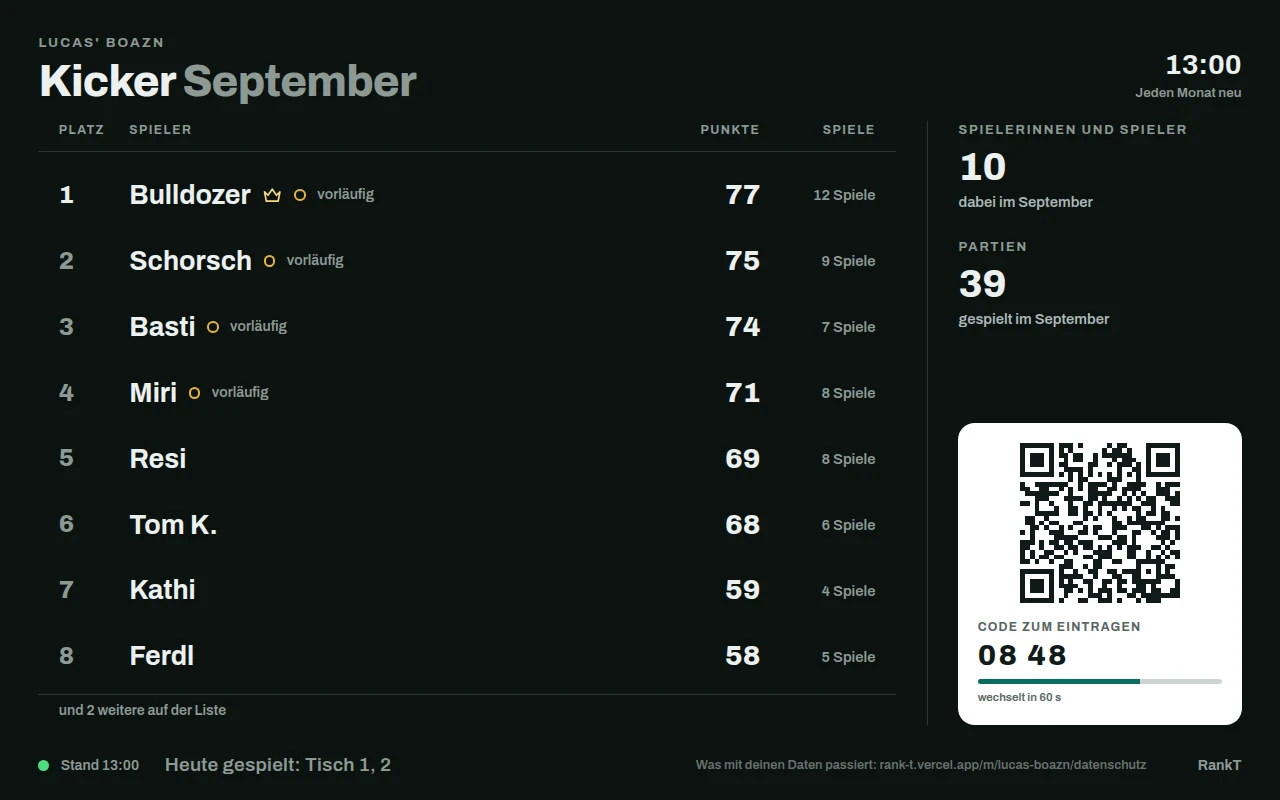
This is what it looks like once it runs. The screen cycles through several views on its own – the current standings, today’s best, and what there is to win. What you need
A device on the wall with a browser. Wi-Fi that reaches it. A printer for the sheets next to each table. And an email address you can actually get at.
That is all. No contract, no installation, nothing to set up on your till.
You do not need to buy anything new. An old telly with a streaming stick or a small computer will do, and so will a retired iPad.
Create an account
The account belongs to you, not to your pub. One account can run several houses later on – if you have two places, or if you also want RankT in your own cellar.
Open the operator area
On a computer, go to rank-t.vercel.app/admin. That is the front door: email address and password, with the other ways in written small underneath.
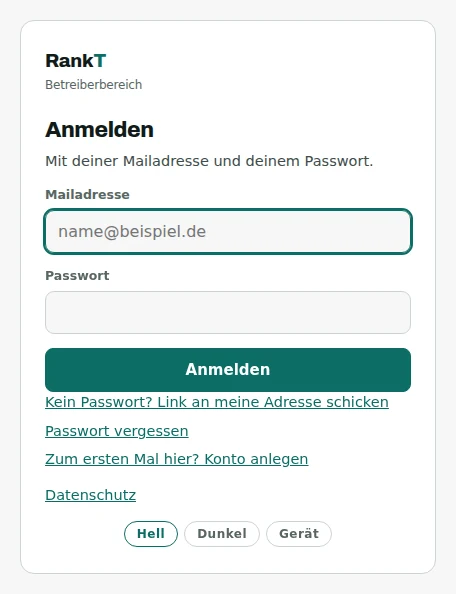
The first time you take the bottom line: “Zum ersten Mal hier? Konto anlegen” – first time here, create an account. Enter an address and a password
The password needs at least ten characters. There are no other rules – forced special characters produce notes under keyboards, not better passwords.
If you would rather have no password at all: you can have a link sent to your address every time instead. That way still exists, it is simply no longer the first one offered.
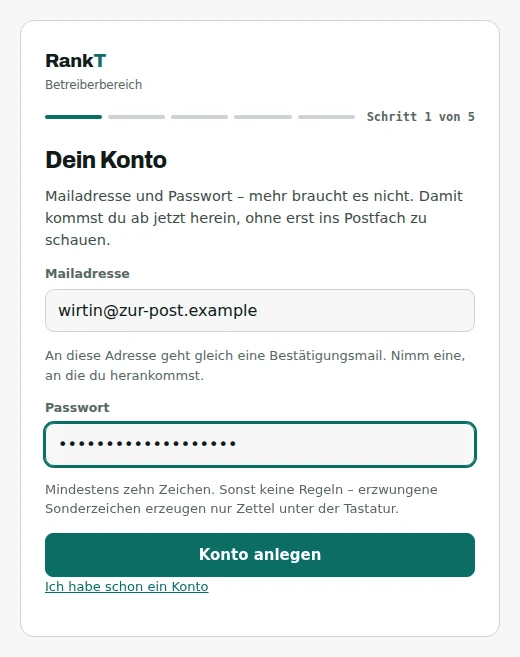
Step 1 of 5. The progress bar sits at the top of every card. Confirm the email
RankT sends you a link. Only after that can you create a pub – not to annoy you, but so that nobody else can take your address.
If nothing arrives, check the spam folder. The card has a button that sends the mail again.
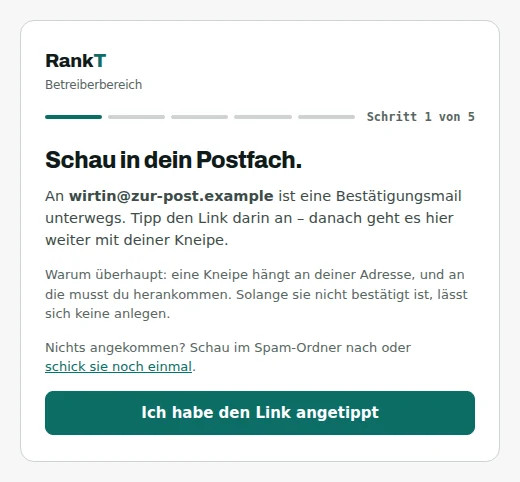
This card stays until the address is confirmed. You can close the window and come back later – RankT does not store how far you got, it reads it afresh every time.
Create the pub
Name and address
The name later sits in large letters above the leaderboard on the wall. Write it the way your guests say it – “Lucas’ Boazn”, not “Fugel Hospitality Ltd.”
The postal address is needed for the privacy notice your guests can open on their phones. You also set the language the wall screen speaks and the time zone you are in.
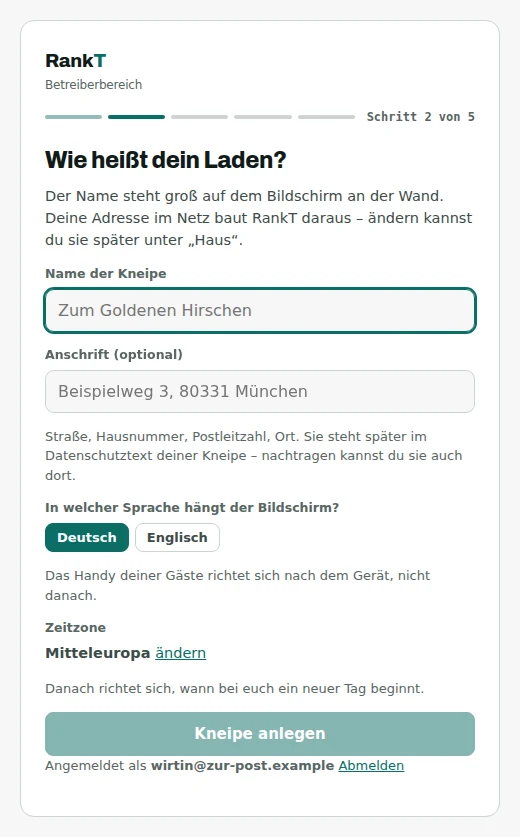
Step 2 of 5. The web address follows the name
As soon as you type the name, the web address of your pub appears underneath – “Lucas’ Boazn” becomes lucas-boazn. You do not have to invent it.
If you rename the pub later, the address moves with it. A QR code you have already printed keeps working: every address that was ever in use leads to your house forever.
A printed sheet never stops working just because you renamed your pub. That is the whole point of it.
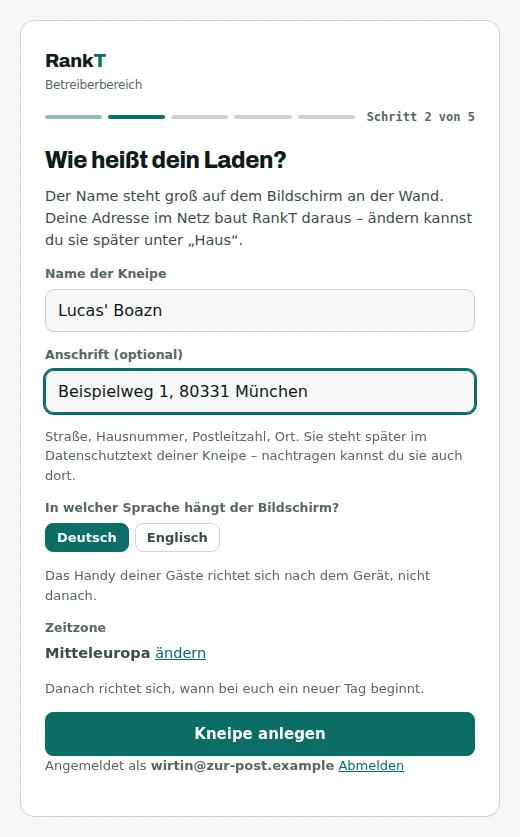
Below the name field you see what comes out. There is nothing to type there.
The first leaderboard
A leaderboard is a way of scoring, not a table. Six pool tables make one list – not six. And one table football can appear in two lists, say the monthly standings and a tournament night.
Say what is being played
You pick the game – table football, pool, darts, bowling, pinball and a dozen more. That settles everything else: how points are counted, what a table is called (“table”, “lane”, “board”), and whether an opponent has to confirm the result.
Then you say how many of them you have. “2” becomes “Table 1” and “Table 2” – you can rename them at any time.
Finally: how long does the list count? An evening, a week, a month, a year – or it simply runs on. When it turns over it starts from scratch; the old results stay on record, they just stop counting.
You never configure a points formula. You say what is being played, and RankT knows the rest.
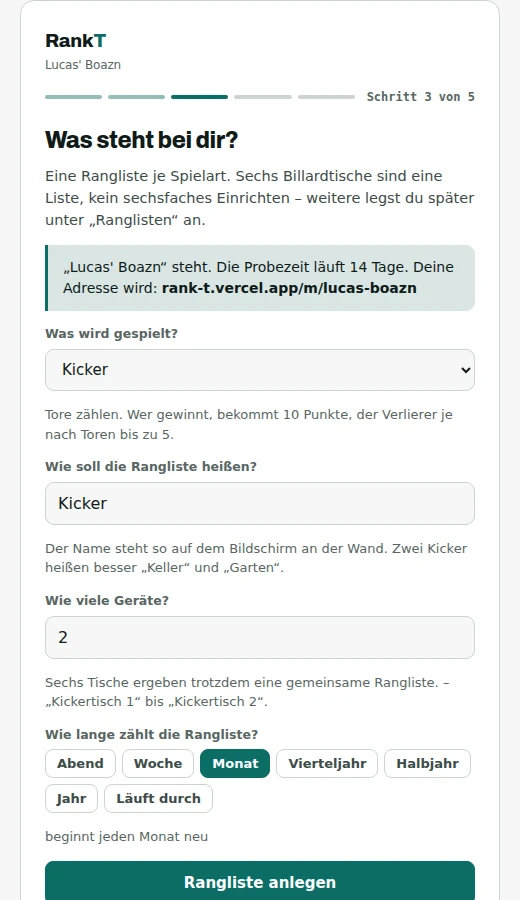
Under the game there is one sentence about how it is scored – here: goals count, the winner gets 10 points, the loser up to 5 depending on goals.
Put up the screen
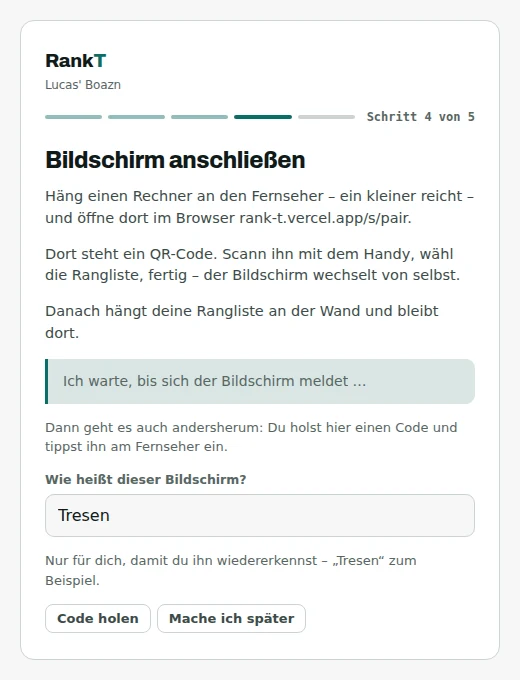
The device on the wall gets no account and no password. It shows who it is, and a person confirms that with a phone. So there is no keyboard to wrestle behind the telly.
Open the address on the device
Put the device on the wall, open its browser and type rank-t.vercel.app/s/ followed by any word – /s/bar for instance. The word is only the name this device remembers itself by.
After that there is nothing more to do on that device. Put the keyboard away.
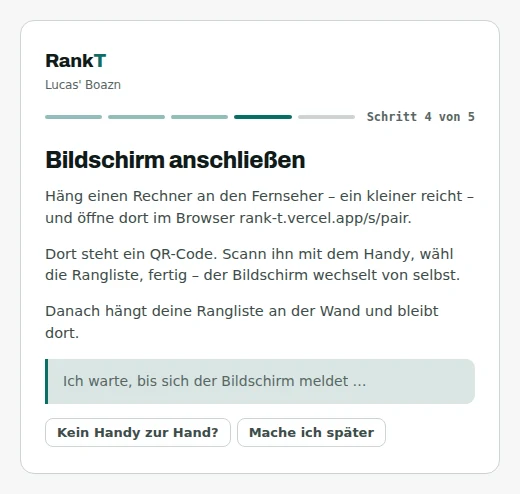
The setup path waits until the screen reports in. You can also skip this and do it later under “Screens”. The screen shows a QR code
At the top there is a band with a QR code and a short identifier. Below it, an example leaderboard with made-up names – so the device does not look broken while it is still waiting.
That it is an example is written above it in large letters. Nobody should mistake those numbers for real ones.
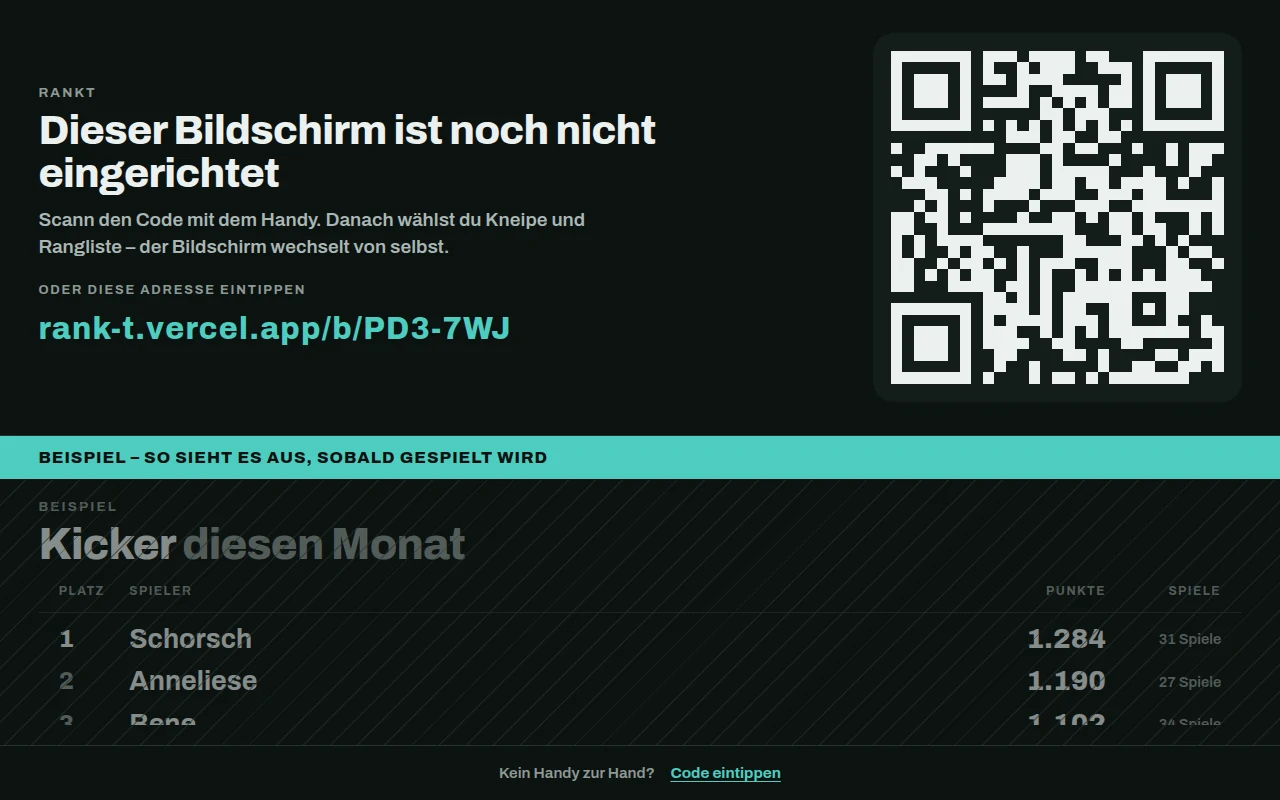
The identifier is valid for a while and then replaced. There is no countdown – nobody should stand in front of a wall being rushed. Scan it and take the screen over
Scan the code with your phone. You land on a page where you sign in and then choose two things: which pub and which leaderboard. Plus a name for the screen so you recognise it later – “bar”, “back room”, “above the table football”.
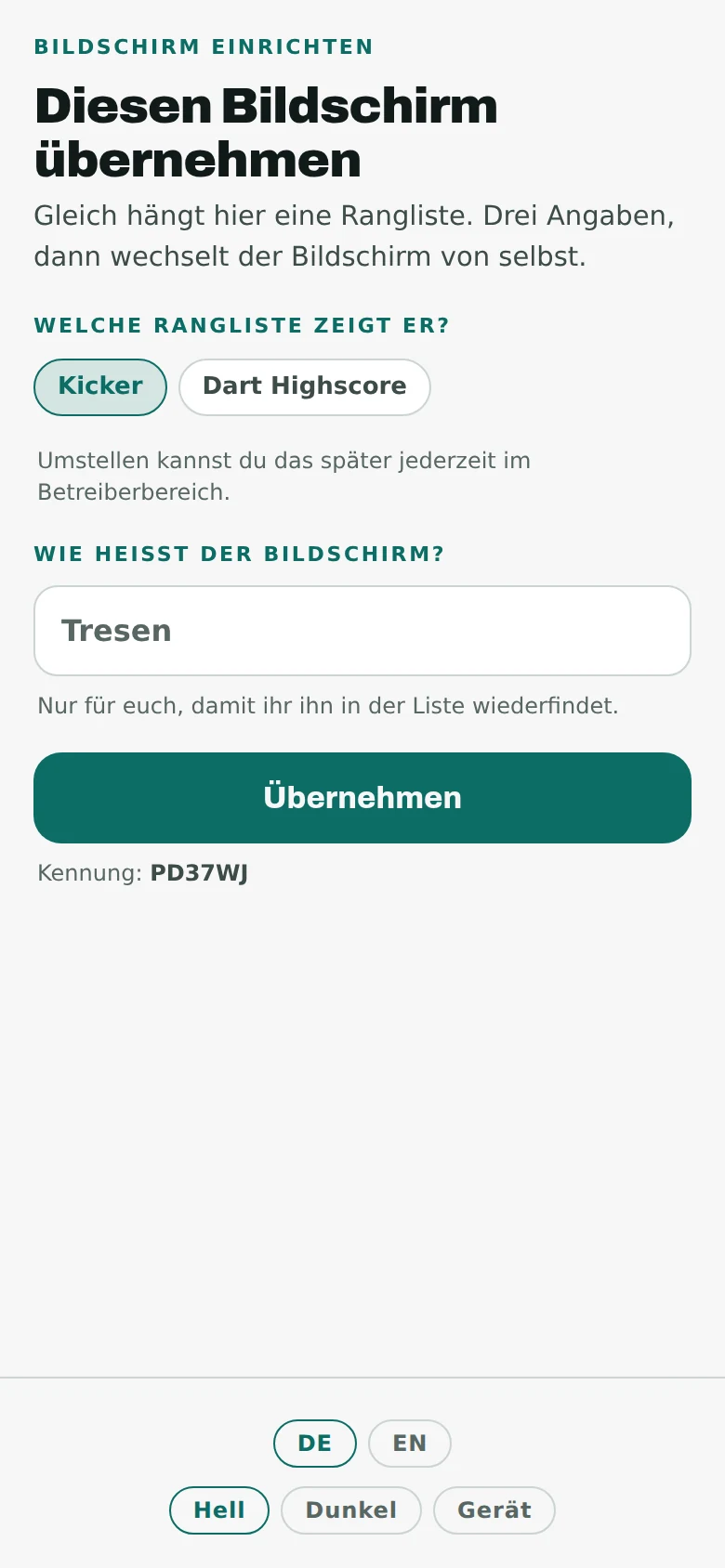
On your phone, standing in front of the device. No cable, no keyboard. Done – the screen switches by itself
A few seconds later your leaderboard is on the wall. You do not have to restart anything or confirm anything.
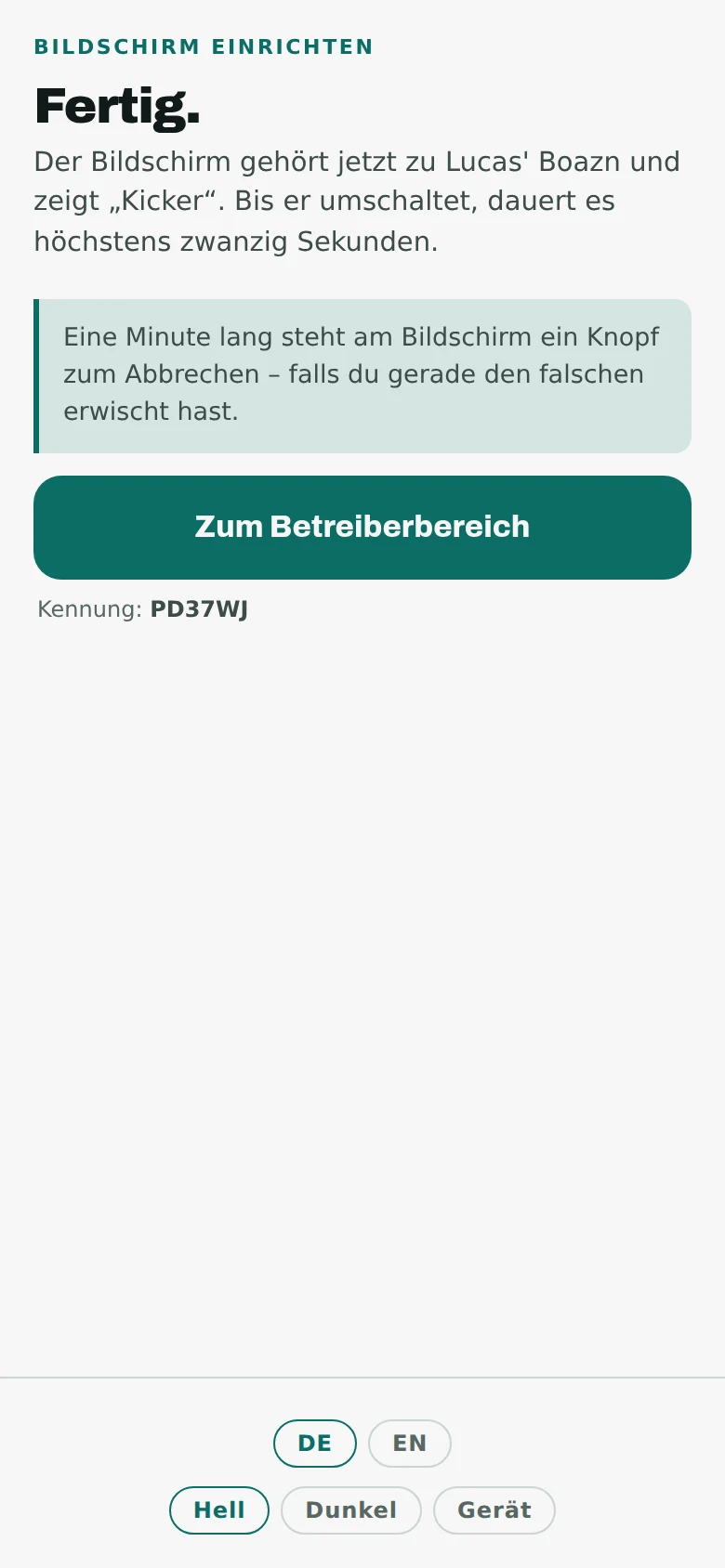
The phone says so, the wall switches. If you grabbed the wrong one
For one minute there is a cancel button on the screen itself. Whoever stands in front of it has the last word – no account, no asking you first.
After that, unpairing only happens in the operator area, under “Screens”.

One minute only. Any longer and it would stop being a recall and become a second way to unpair. The screen is now in your list
Under “Screens” you see every screen in the house: what it shows, whether it is online, and when it last reported in. This is also where you change which leaderboard it shows.
If there is no phone to hand or the camera is being difficult, the old way still works: generate a code here and type it in on the screen.
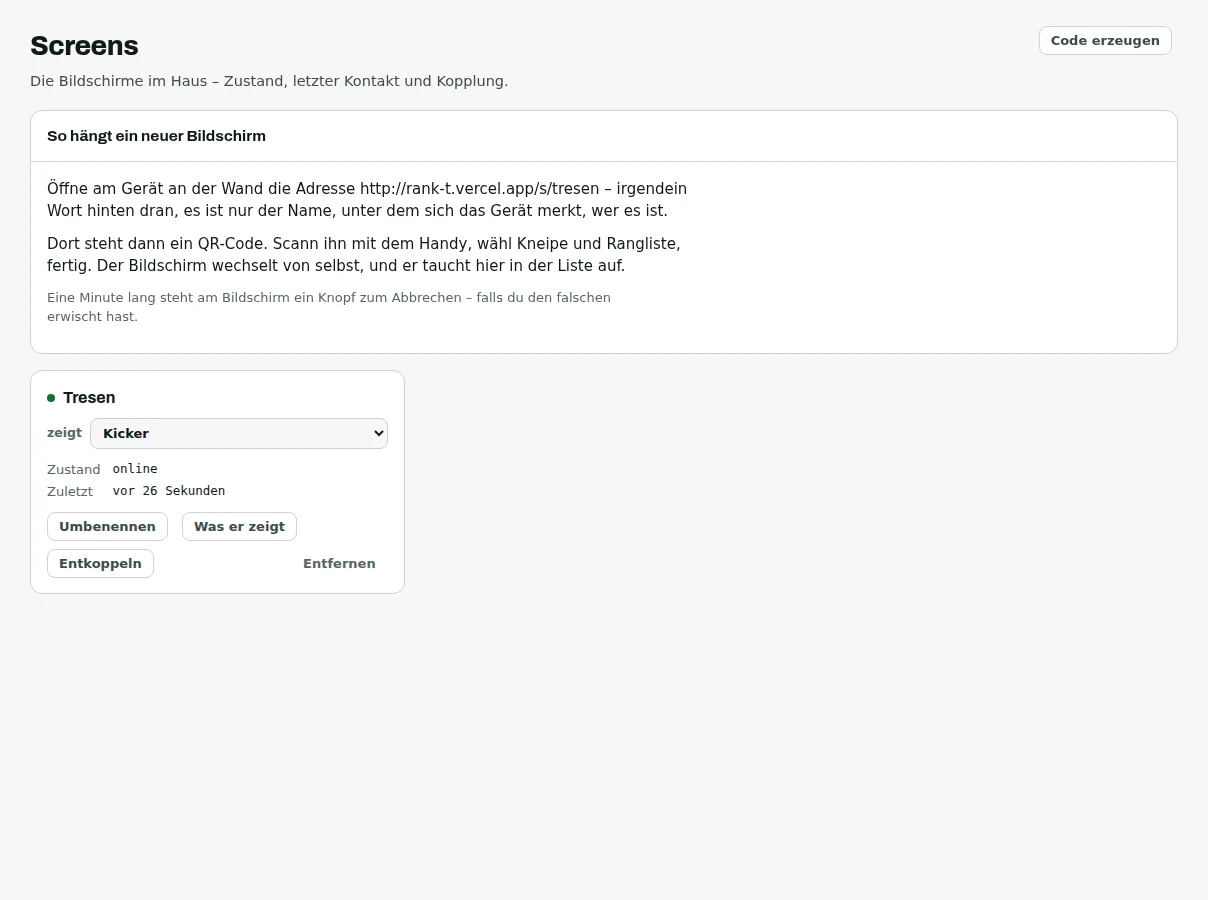
Unpairing can be undone for ten minutes. The screen on the wall keeps retrying its old access and reconnects by itself.
Print the QR codes and put them up
One sheet next to every table. That is the only way a guest ever finds out the list exists.
Open the print page
It sits at the end of the setup path and is available in the operator area afterwards. You get one page per table.
Step 5 of 5. After this you are set up. Pick a size and a look
Four sizes: A4, A5, A6 and a ten-by-ten-centimetre sticker. And four looks: plain black on white for any printer, plus the three designs of the wall screen.
On the left you see exactly what will come out. Print, laminate or slip into a sleeve – and then next to the table, not on the door.
Next to the table, not on the door. Somebody standing at the table should see the code without turning round.
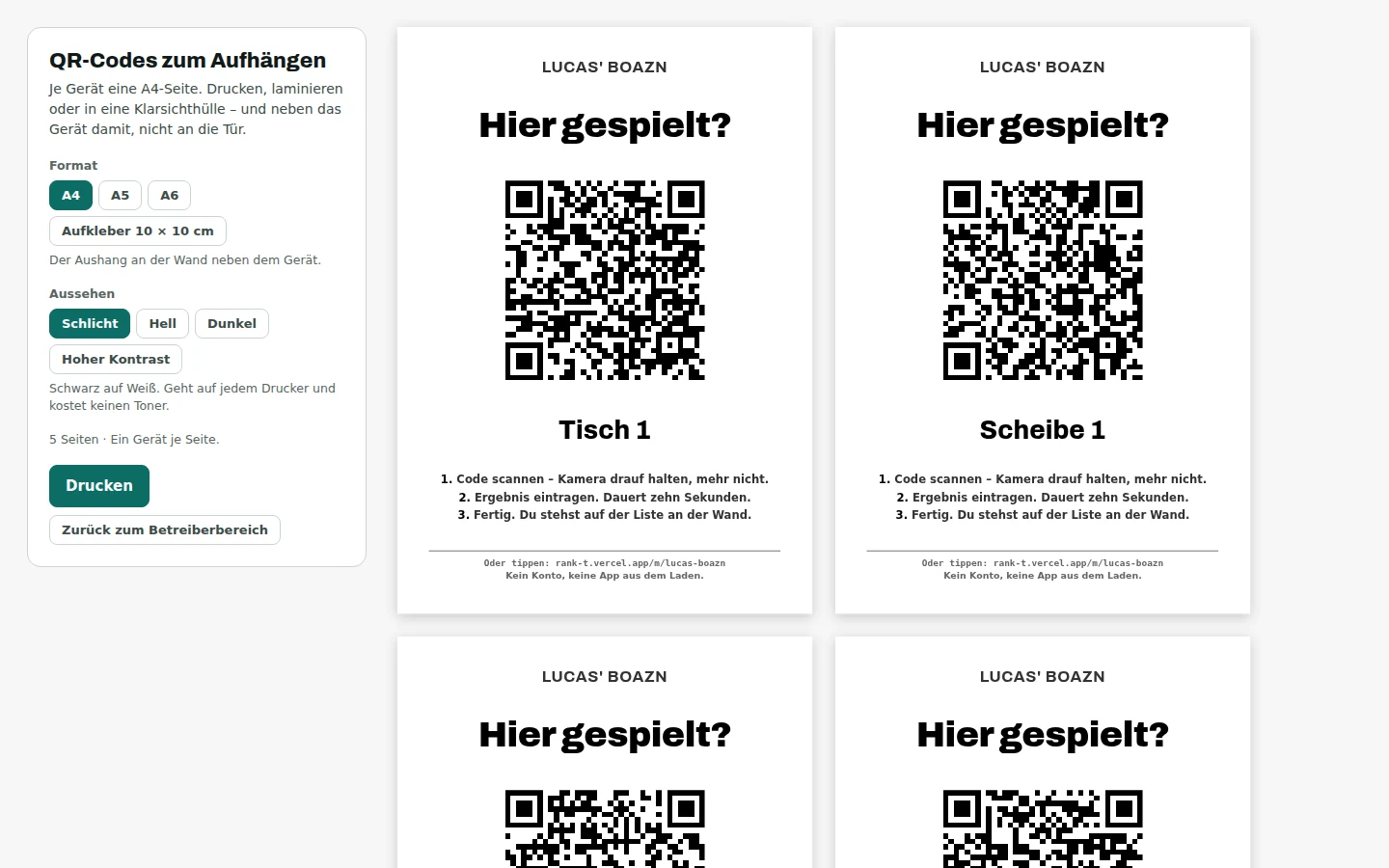
Each sheet carries the name of its table and leads straight to the right leaderboard when scanned – with the table already selected.
The operator area
From here on it runs by itself. What you see here is mostly an answer to one question: do I need to do anything?
The overview
At the very top sits the only thing that really needs you – disputed results. Below that, the numbers of the week and a short report of what happened.
If nothing is up there, there is nothing to do. That is the normal case.
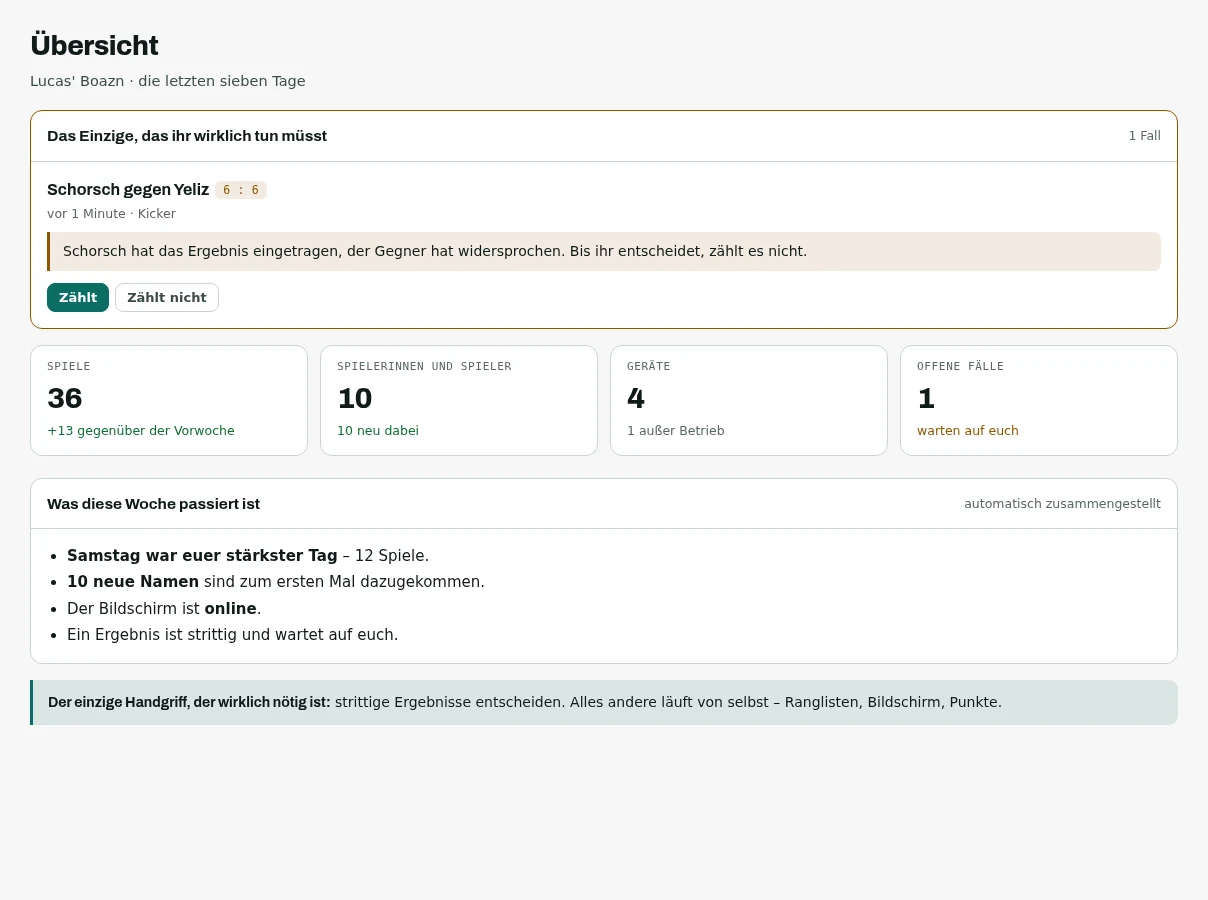
The tabs are on the left. A number on the “Zu klären” tab means something is waiting for you there. The leaderboards
Every scoring in your house side by side: what it is called, what is played, how long it runs, when a result becomes final, and how many tables hang off it.
“Ansehen” shows the list as it appears on the wall. “Einstellen” opens the settings.
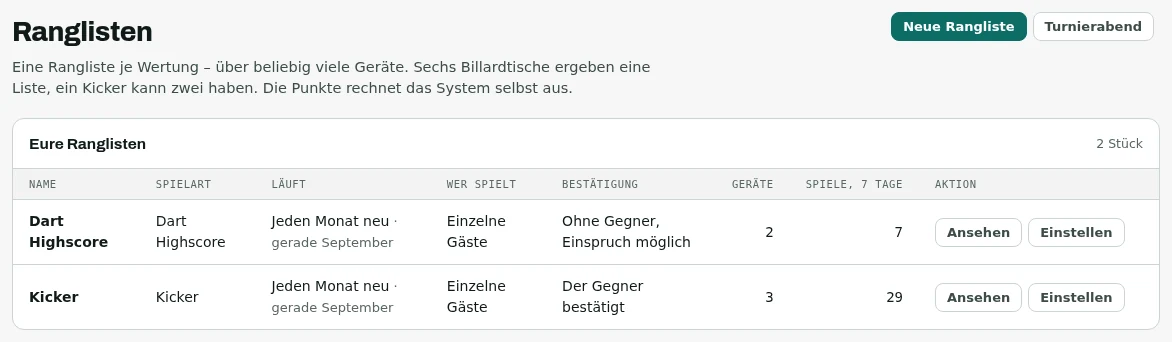
You add another leaderboard at the top right. “Turnierabend” next to it creates a list that counts one evening only.
Scoring and periods
Everything on this page can be changed at any time, even mid-evening. None of it deletes a game.
How long the list counts
Evening, week, month, quarter, half year, year – or it runs on and is never reset. If you want your own rhythm, say “every 2 weeks” or “every 3 months”.
Underneath it always says what is running right now. When it turns over the list starts from scratch and the old results stay on record.

The highlighted button is the one in force. When a result becomes final
Until then a result already counts, but is marked provisional and can be disputed. You can make it final immediately, after an hour, after an evening, after a day, after three days – or only once the opponent explicitly confirms.
The default is one day. Long enough that nobody is surprised the next morning, short enough that the list is right by the weekend.

A game against a name that no phone has claimed never becomes final on its own – somebody who is never asked cannot agree. Several periods on the same list
A period is a pair of glasses, not a second leaderboard: today’s best, this month’s best, the all-time best. A game is still entered once and counts in every period it falls into.
For each period you decide how it is counted: like the leaderboard, or simply by wins. On a single evening “most wins” is usually the better choice – after three games the points formula barely separates anyone.
Removing a period deletes no games. Take the glasses off and nothing is gone.
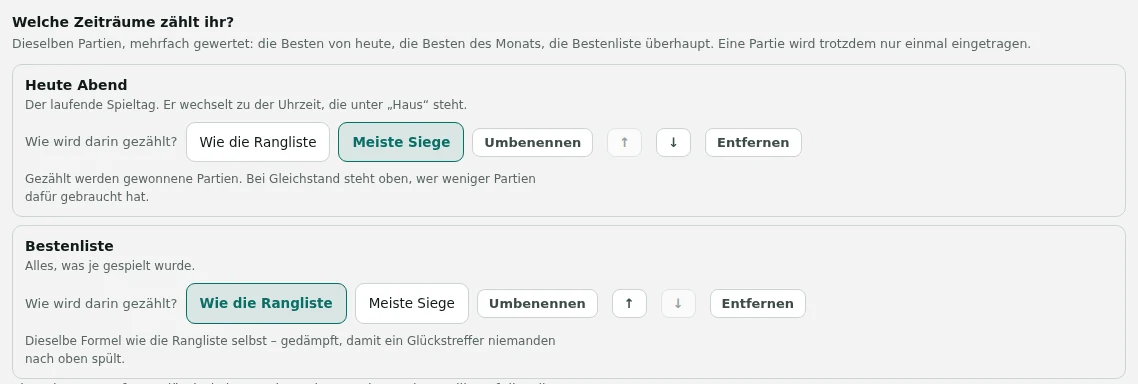
What you add here appears on the wall screen as its own view and on the phone as a second row of buttons.
Tables and machines
Tables change nothing about the leaderboard – it counts across all of them. Here you only see which one is running and which one is out.
What is in the house
Each one shows which leaderboard it belongs to and how much was played on it this week. Renaming is always possible.
Deleting always works – even where games were played. The games stay with their points and their leaderboard, and the name of the table stays beside them: “played on Table 1”, long after the table itself went to the cellar.
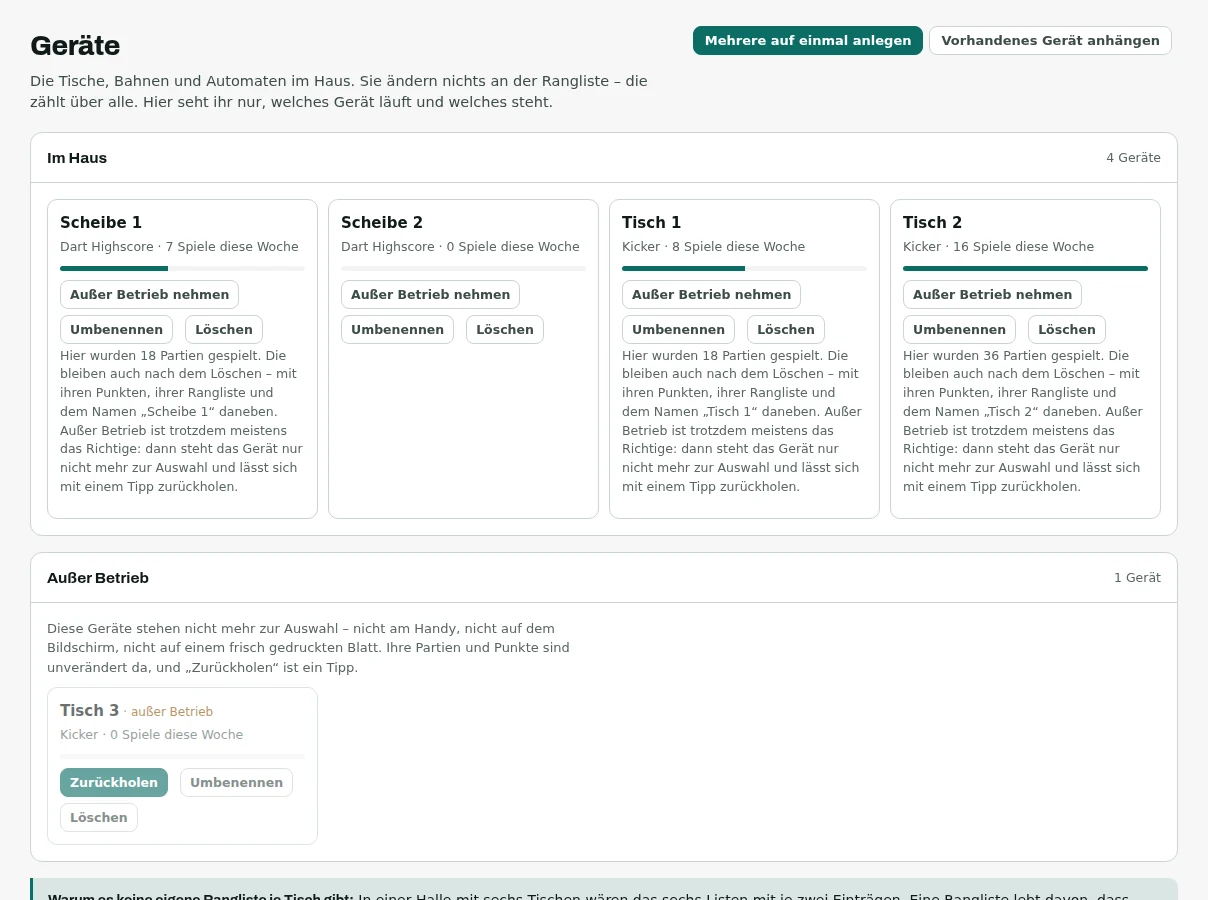
A bar on each card shows where people played this week. The table nobody stands at stands out. Take it out of service instead of deleting it
The table football went out during the refit, the dart board has a hole in it: then you take it out of service. It disappears from the choices on the phone, from the wall screen and from the next printed sheet – and nothing else changes. Games, points and past standings stay exactly as they are.
Before it happens, it tells you what happens: how many games hang off it, from how many players, whether it is the last table of a leaderboard, and what the affected screens will show afterwards. You can bring it back at any time.
Deleting is the second way, and it is final. Use it for the test table from the first evening or for the machine that is never coming back – for everything else, out of service is better, because it is one tap back.
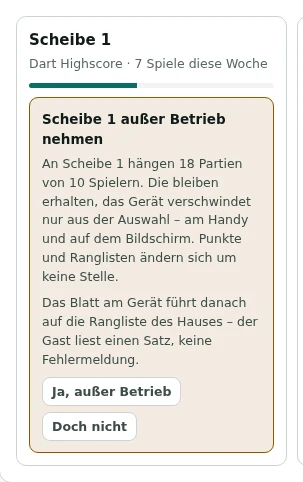
Not “are you sure?”, but numbers. A warning without numbers is exactly the question nobody reads.
The “to settle” tab
Everything two guests could not sort out between themselves ends up here. This is the one job that is genuinely yours.
Settle a disputed result
Somebody entered a result, the opponent disagreed. Until you decide, it does not count. You see who played whom, the score, when it was and on which table.
Two buttons: it counts, or it does not. If you are not sure, “does not count” is always the safe choice – the game leaves the leaderboard, nobody gets points, and the evening is saved.
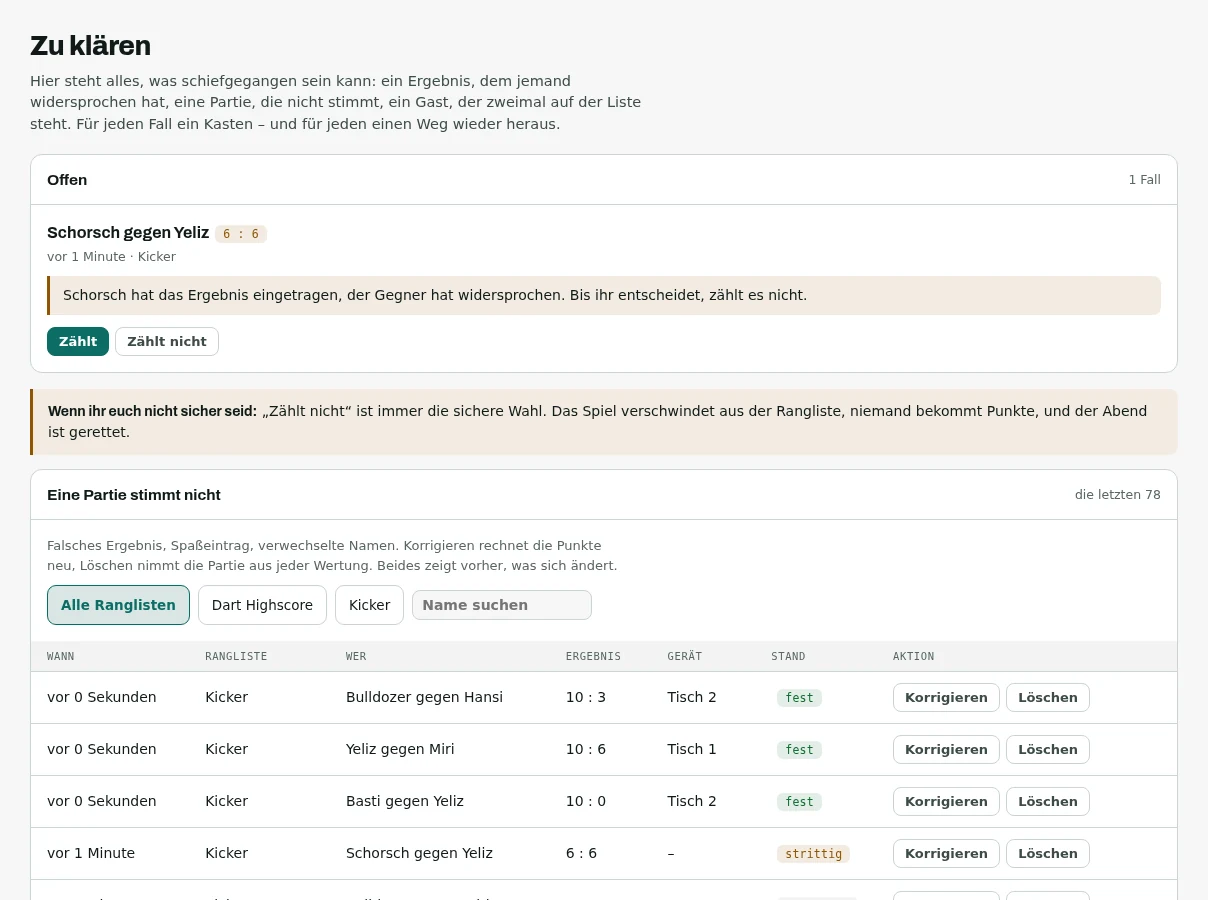
The number on the tab tells you how many cases are open. No number means nothing to do. A game that is wrong
Wrong score, a joke entry at two in the morning, mixed-up names: below that you find the most recent games of your pub, filtered by leaderboard or searched by name. Two buttons per row.
“Correct” opens the result: names, goals and the table can be put right. Beside every name it says how many points they have today and how many they would have afterwards – worked out before you save. The leaderboard and the time stay; a game that moves to another list would not be a correction any more.
“Delete” takes the game out of every standing. For everybody, at once.
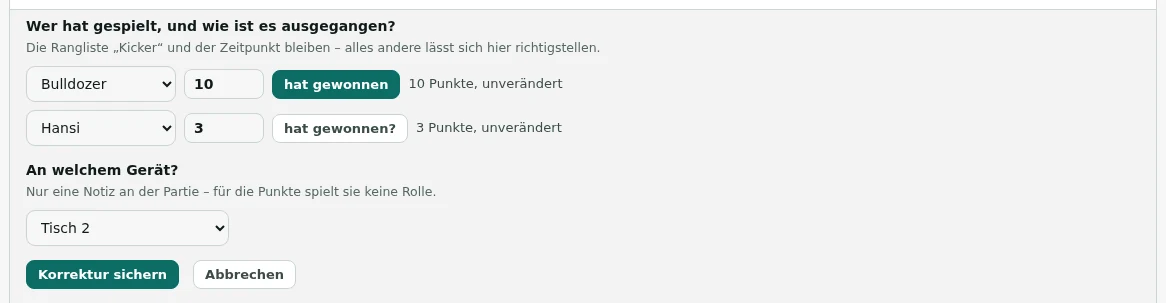
Next to every name it says what the correction changes in points – before you save it. One guest, two entries
It happens that one person is in the list twice – once as “Schorsch”, once as “Georg”, because they changed phones. Further down the same page you merge the two: every game moves to the entry that stays, the empty one disappears.
And if somebody claimed the wrong name, you release the phone from it. The entry then belongs to nobody again, and for half an hour the right person can claim it on their phone.
Whatever a guest can break, you can fix on your own. You never have to ring anybody.
Sixty seconds back
After every deletion – a table, a leaderboard, a game, a name, the whole pub – a bar appears at the bottom edge: what is gone, and an “undo” next to it. For one minute. After that it is final.
There is no wastebasket. What is deleted is gone everywhere at once – off the wall screen, off the phone, out of every list. The minute is there for the click you did not mean to make, and for nothing else.

Always in the same place, whatever you deleted. When the number runs out, the bar goes with it.
The house
Name, address, prize and the required details
What is here is what your guests see: the name above the leaderboard, the prize on the wall screen (“first place this month drinks on the house”), and your details in the privacy notice they can open on their phones.
Without those details your guests only get a note telling them to ask at the bar. The tab carries an exclamation mark until they are complete.
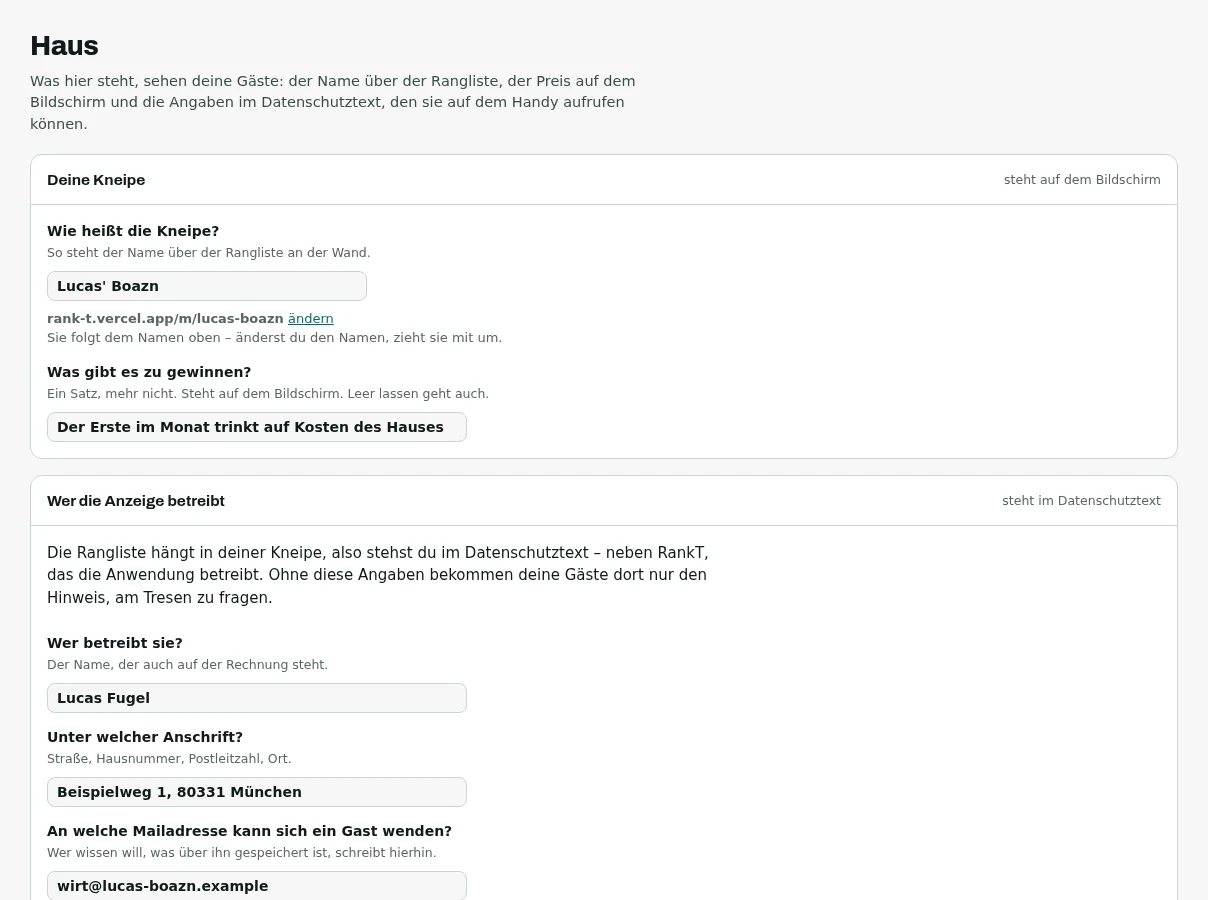
The prize text is one sentence, no more. Leaving it empty is fine too – then that view simply does not appear on the screen. Names that have not played for a long time
Someone who has not played at your place for a while drops out of the opponent list on the phone and out of the all-time best list. Their games are untouched, past standings still add up – and if they play again, they are back automatically.
The default is twelve months. “Never” works too. The filter only applies where the period is unlimited: the monthly standings never make anyone vanish mid-month.
Anyone with an account never rests. Their name belongs to a person who can come back.
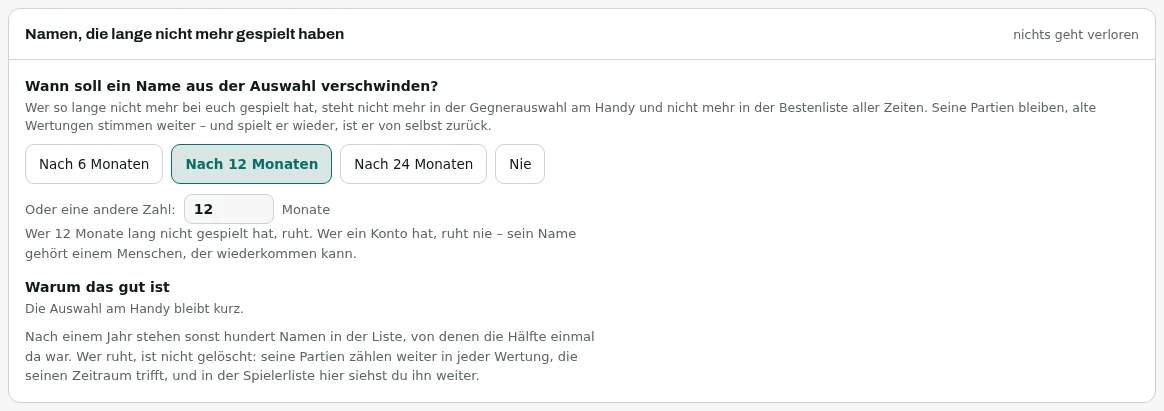
Nothing is deleted. The name is only resting – and wakes up by itself.
The trial period
What happens when it ends
Exactly one thing stops: no new game can be entered. The screen on the wall keeps running, and confirming still works.
That is deliberate. A dead screen embarrasses you in front of your guests, and somebody who entered a game yesterday has nothing to do with an unpaid invoice.
With seven days left the operator area shows a quiet note. Once it has run out, the note is prominent and cannot be dismissed – it concerns the running of the place.
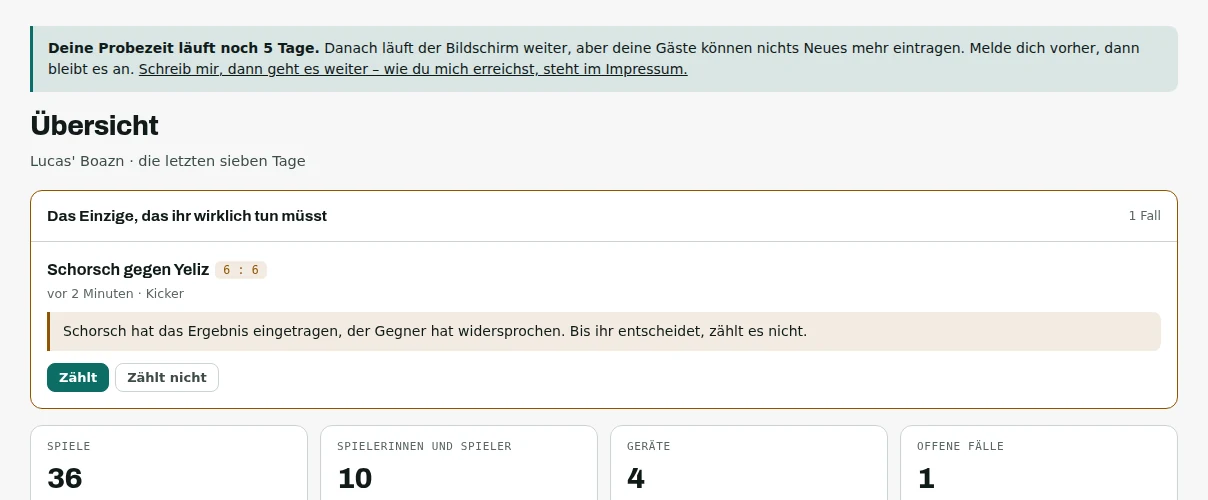
The note appears on every tab, not just one.
Your account
Address and password
Under “Konto” you find what gets you in – and nothing else. The pub lives under “Haus”.
This is where you change your password, or set one for the first time if you have always signed in by link.
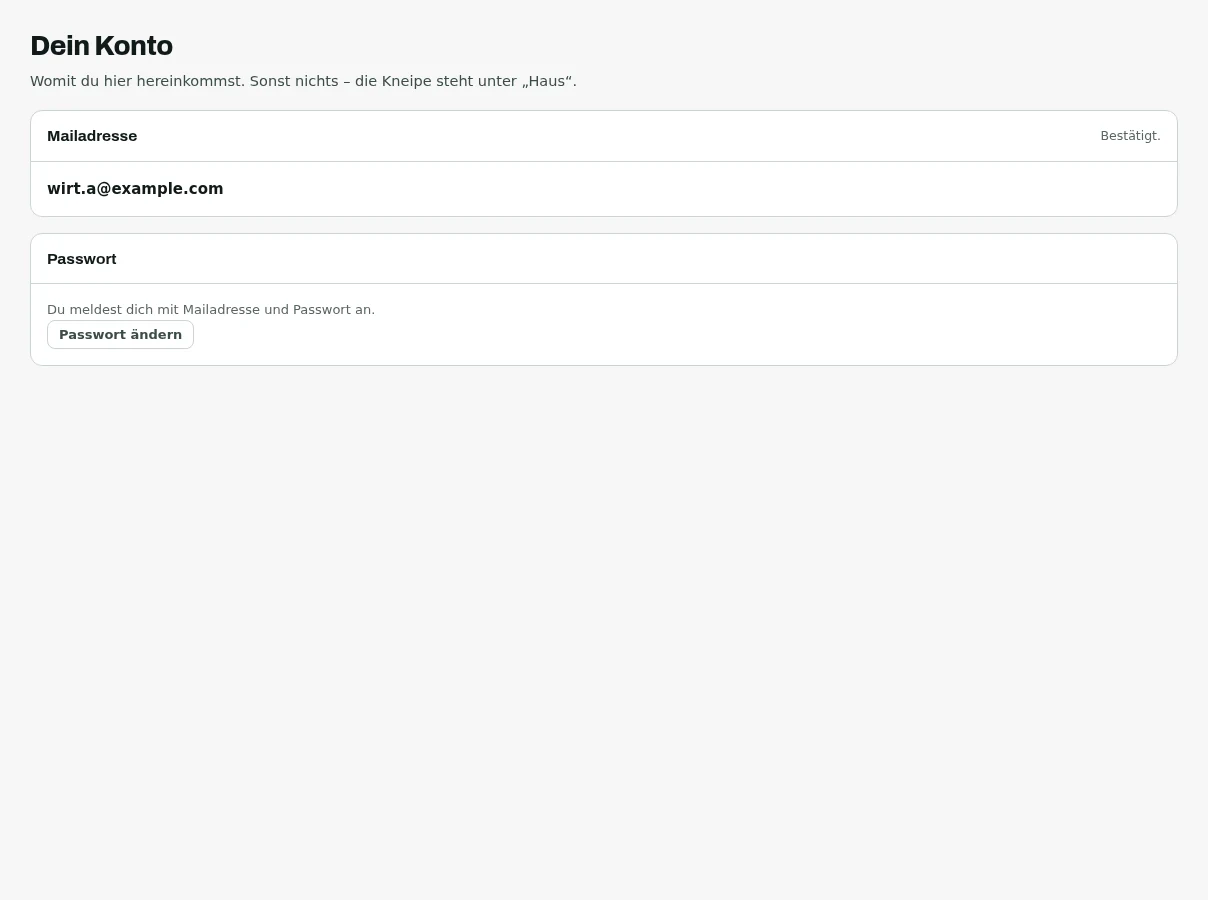
Several pubs on one account are fine. At the bottom left of the sidebar there is “add another pub”.
For guests
No account, no app, no password. Scan the code, give a name, type in the score – about thirty seconds all told.
Arriving
Scan the code next to the table
Point your phone’s camera at the sheet next to the table. A page opens – no app, nothing to install.
You immediately see this pub’s leaderboard: who is ahead, on how many points, from how many games. At the top you can switch between the pub’s leaderboards and their periods.
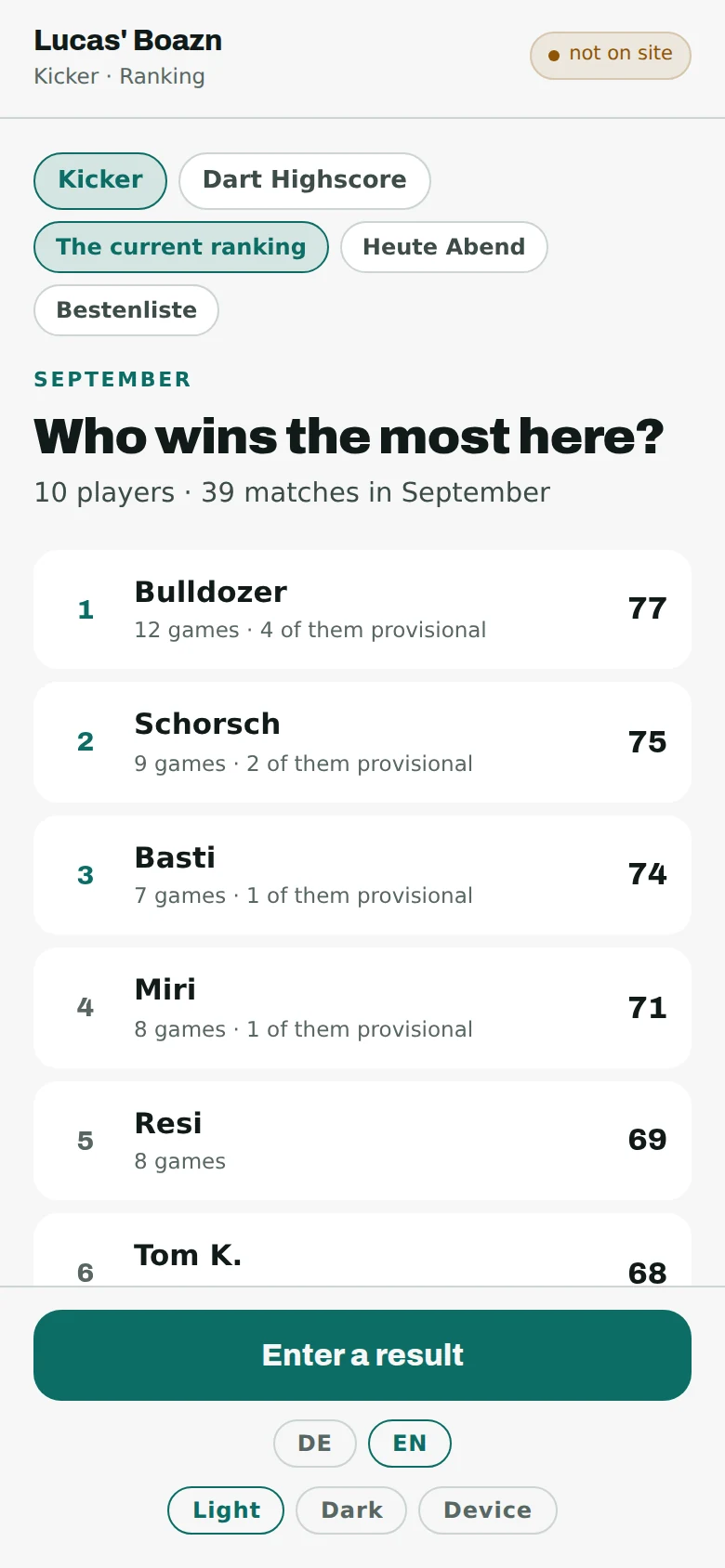
Top right it says you are not on site: anyone can look at the list, from anywhere. Only someone actually there can enter a result – the code for that comes next. Type in the code from the wall screen
If you scanned the sheet, you are usually signed in already. Otherwise RankT asks for the four-digit number shown at the bottom right of the wall screen.
That proves you are in the pub. The number changes every minute and a half – it does not work from home.
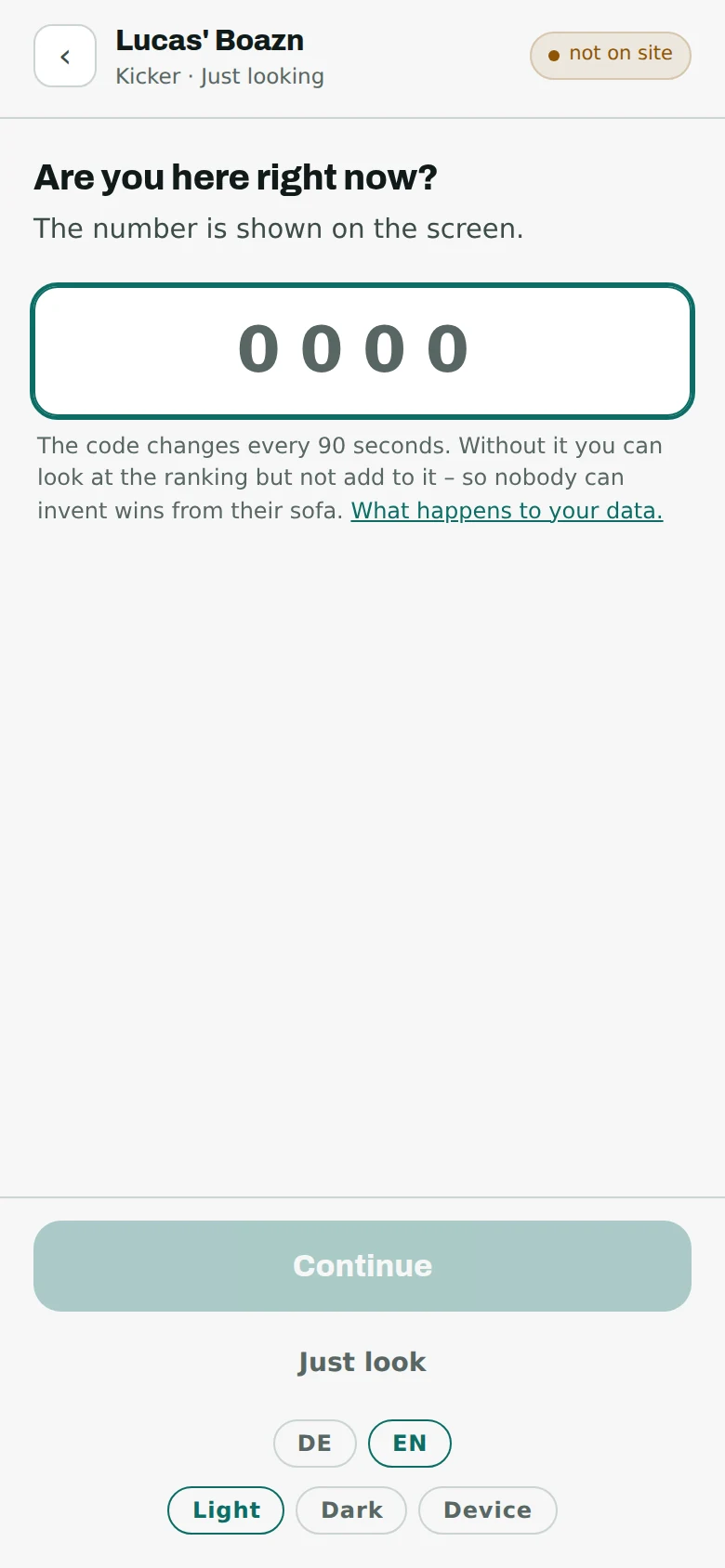
It then holds for two hours. After that, type it again once – that is all.
Your name
Type in a nickname
What should they call you on the list? A nickname is plenty – a pub wall looks better with Bulldozer, Schorsch and Yeliz on it than with three names off a driving licence.
Type it once and the phone remembers you. Next time you are you again straight away.
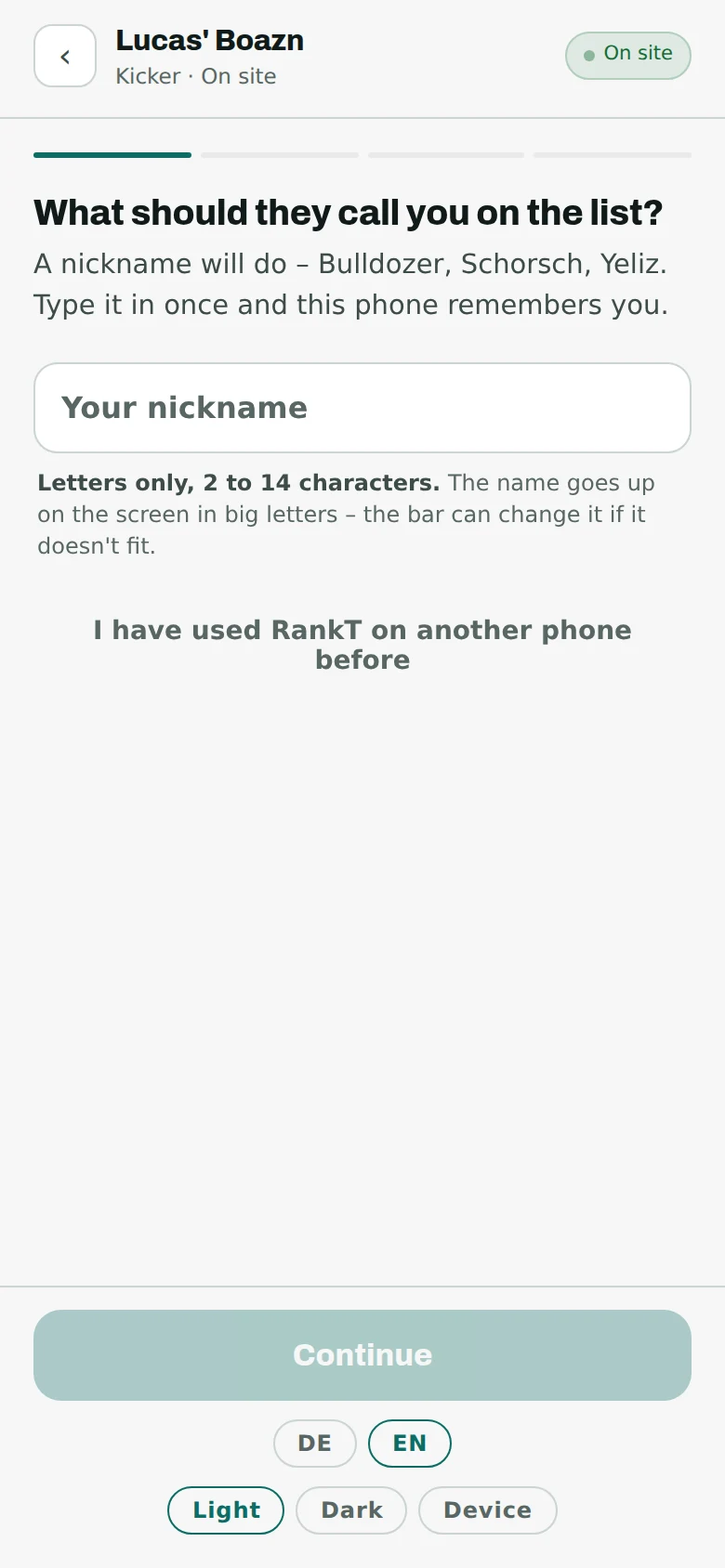
Two to fourteen characters. The name later appears large on the wall screen. If the name is already taken
There is no error message, just a question with three suggestions built from your name – and a free field. Whoever was there first keeps their name.
If a phone already stands behind that name, RankT says so plainly: “That is Schorsch. There is a phone behind it – that person enters their own results.” Then take one of your own.
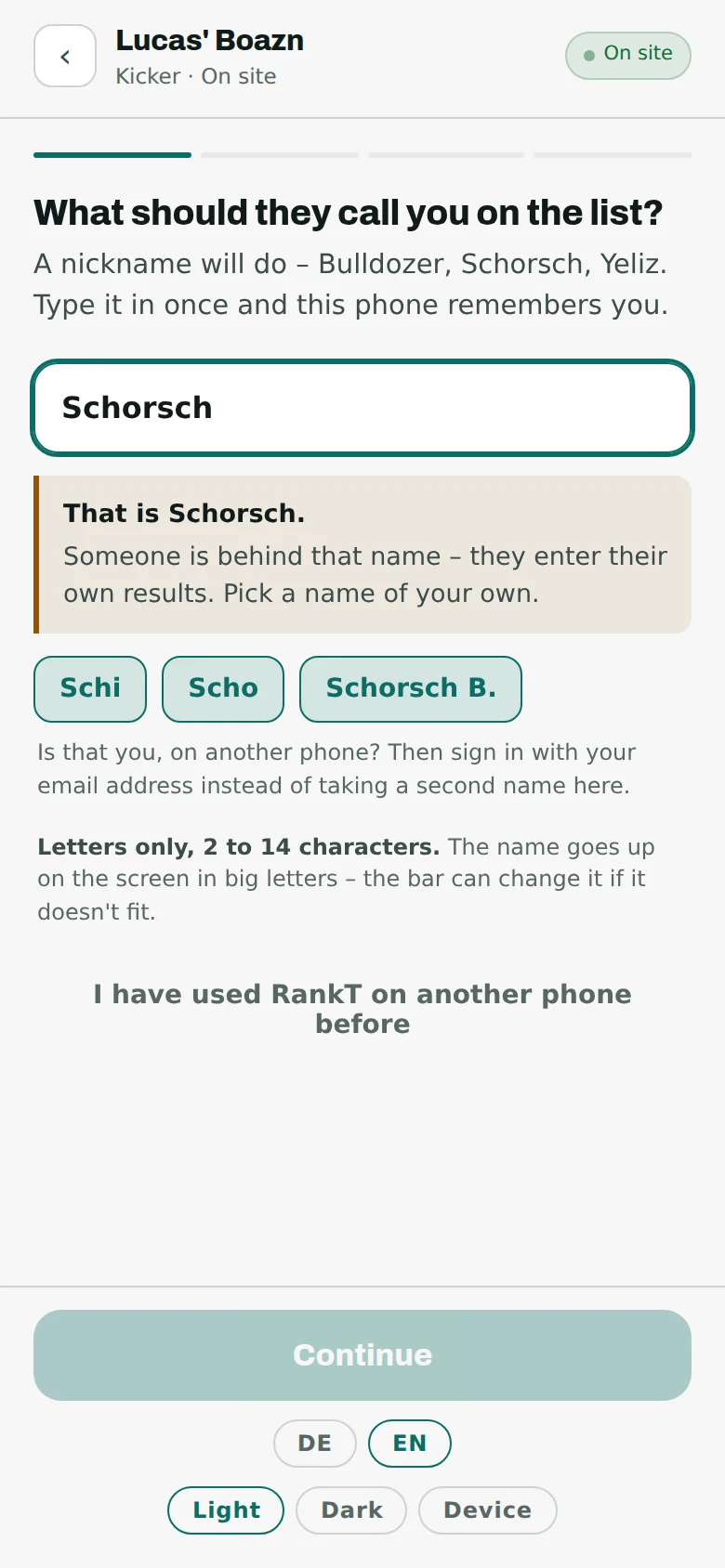
The suggestions are built from the name itself. Just tap one. Change your name later
At any time. On the way to entering a result there is a button for it under your name. Your games stay where they are – the history hangs on you, not on the word.
What you cannot do is take somebody else’s name. There is no “I am that one from now on”.
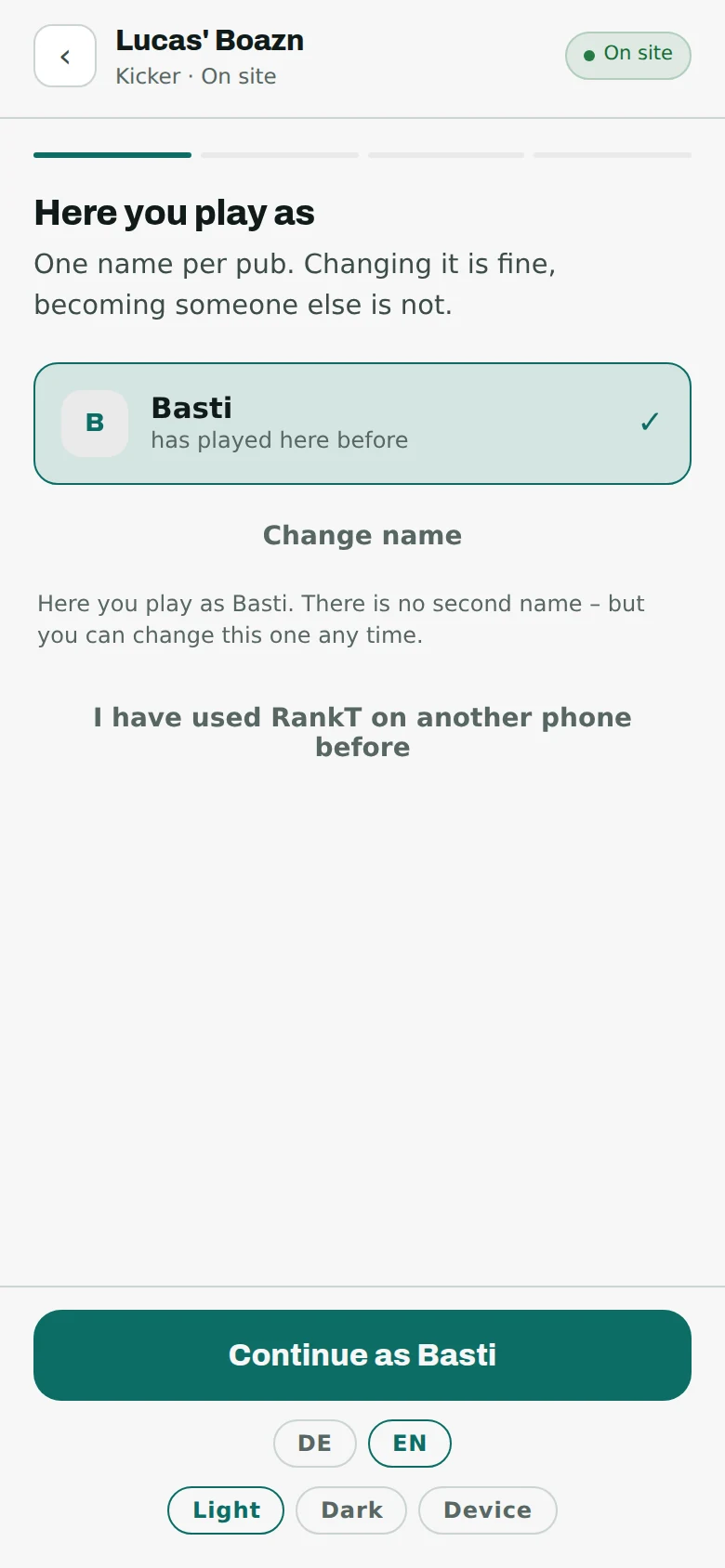
Renaming yes, always. Taking over somebody else, no.
Entering a game
Four questions, four answers. Once you have done it, it takes ten seconds.
Against whom?
Pick your opponent from the list. There is a search field at the top if there are a lot of names. Someone who is not on it yet can add themselves first – or you type their name in.
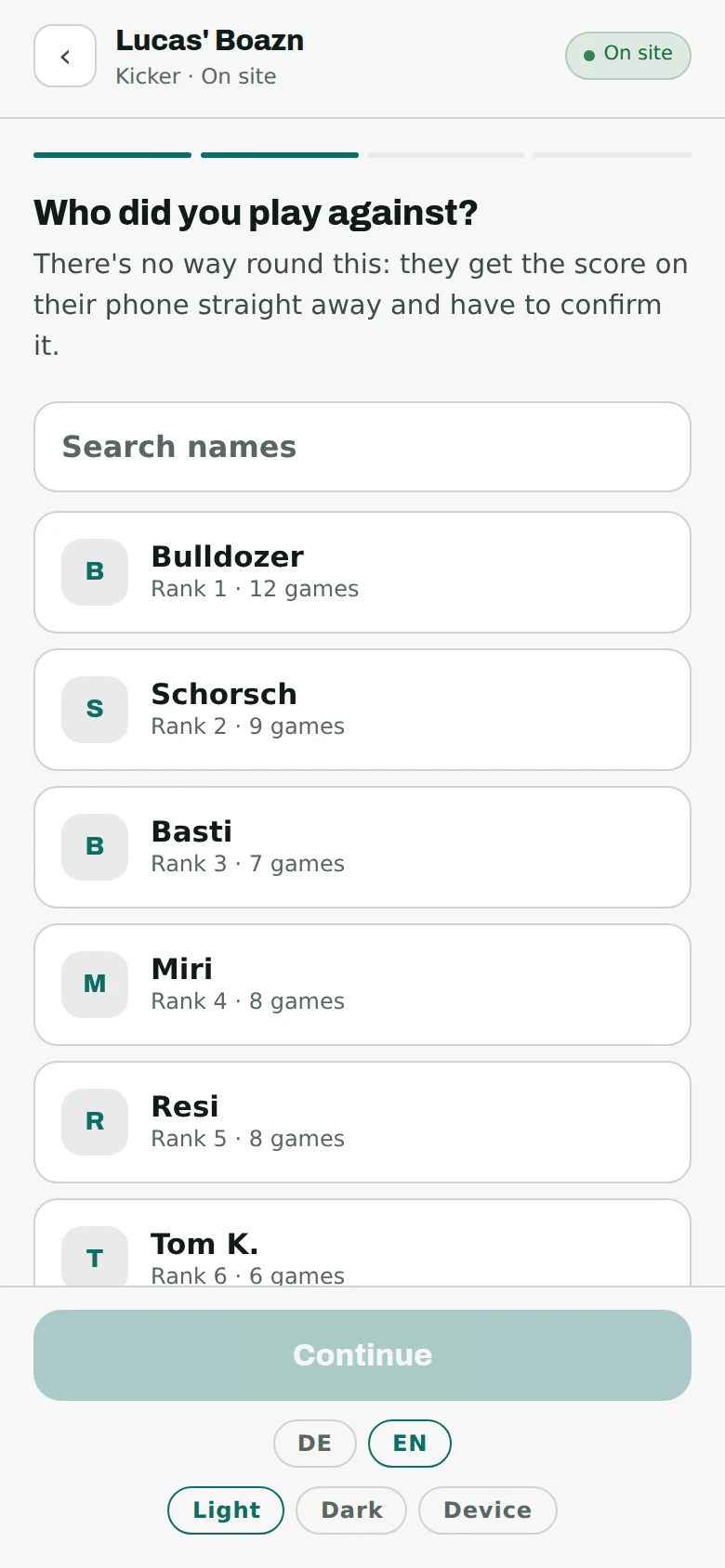
Names that have not played for a long time are no longer in this list – the search still finds them. On which table?
If you scanned the sheet on the table itself, it is already selected. Otherwise tap it. And if you cannot remember, say so – the game still counts.
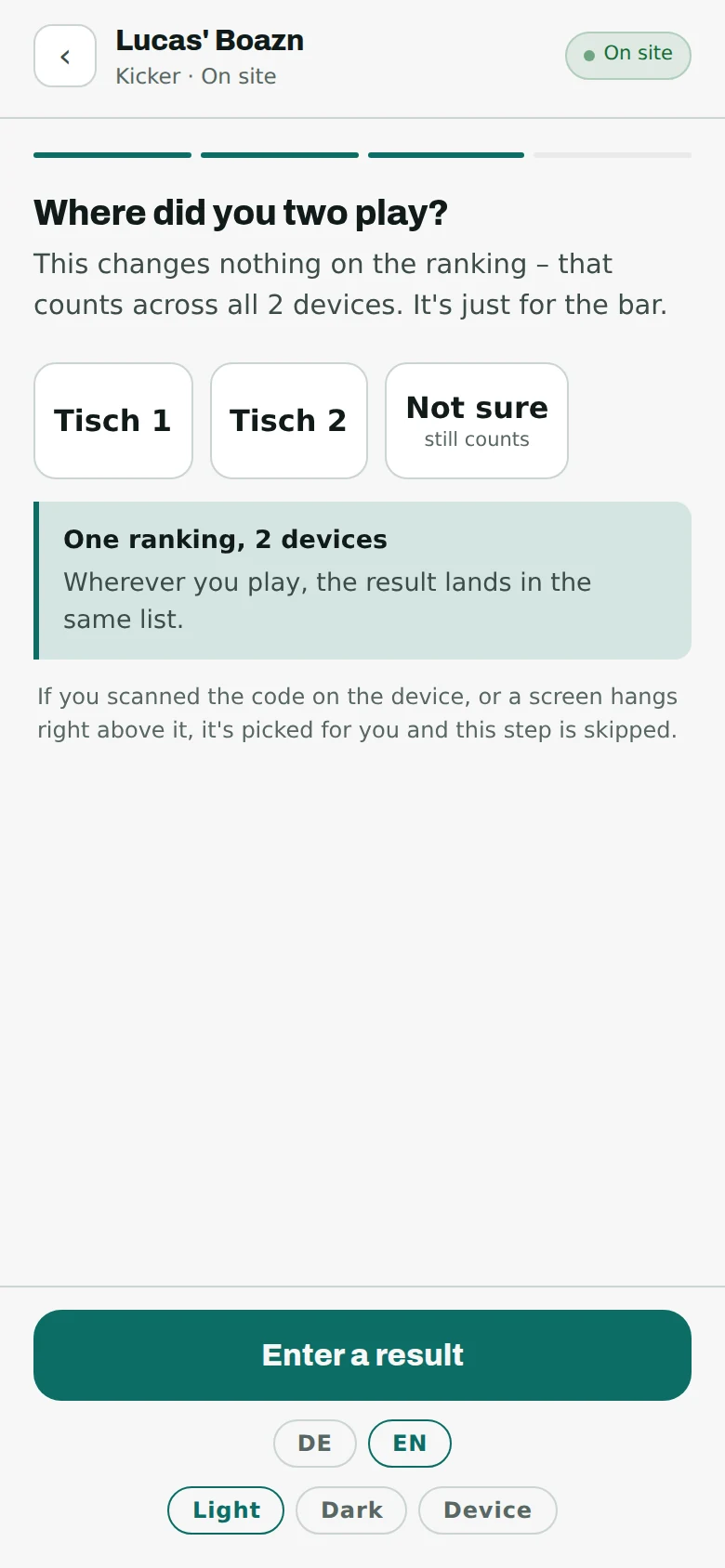
The table changes nothing about the points. It only appears in the footer of the wall screen. How did it end?
Two numbers, that is all. For games without an opponent – highscore, pinball, bowling – it is one number.
RankT works out the points itself. The winner gets ten; the loser gets something if it was close. That is deliberate: otherwise nobody would play the best player in the house.
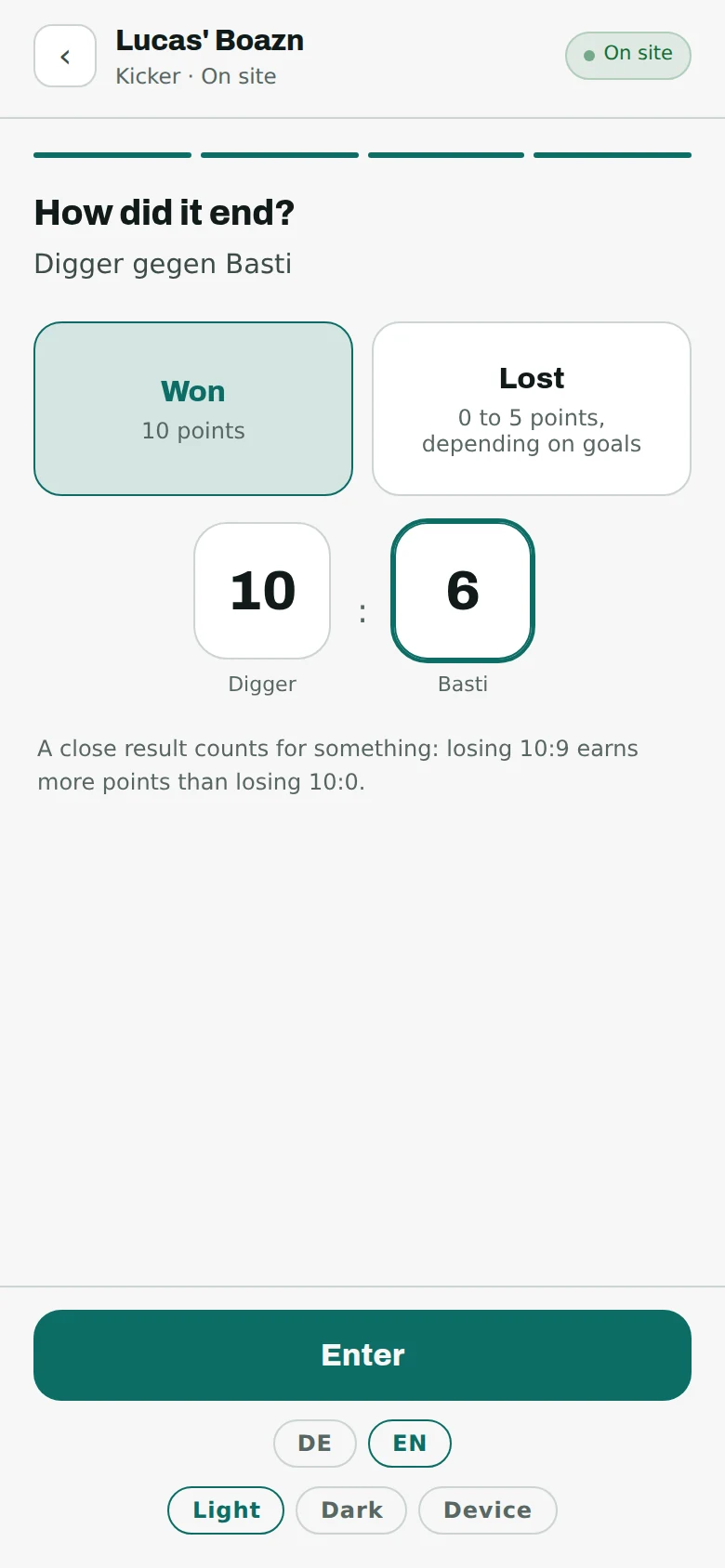
Your number on the left, your opponent’s on the right. Done
You see straight away how many points it was and where you now stand. A few seconds later it is on the wall screen too.
Until your opponent confirms, your name carries “provisional”. It counts all the same.
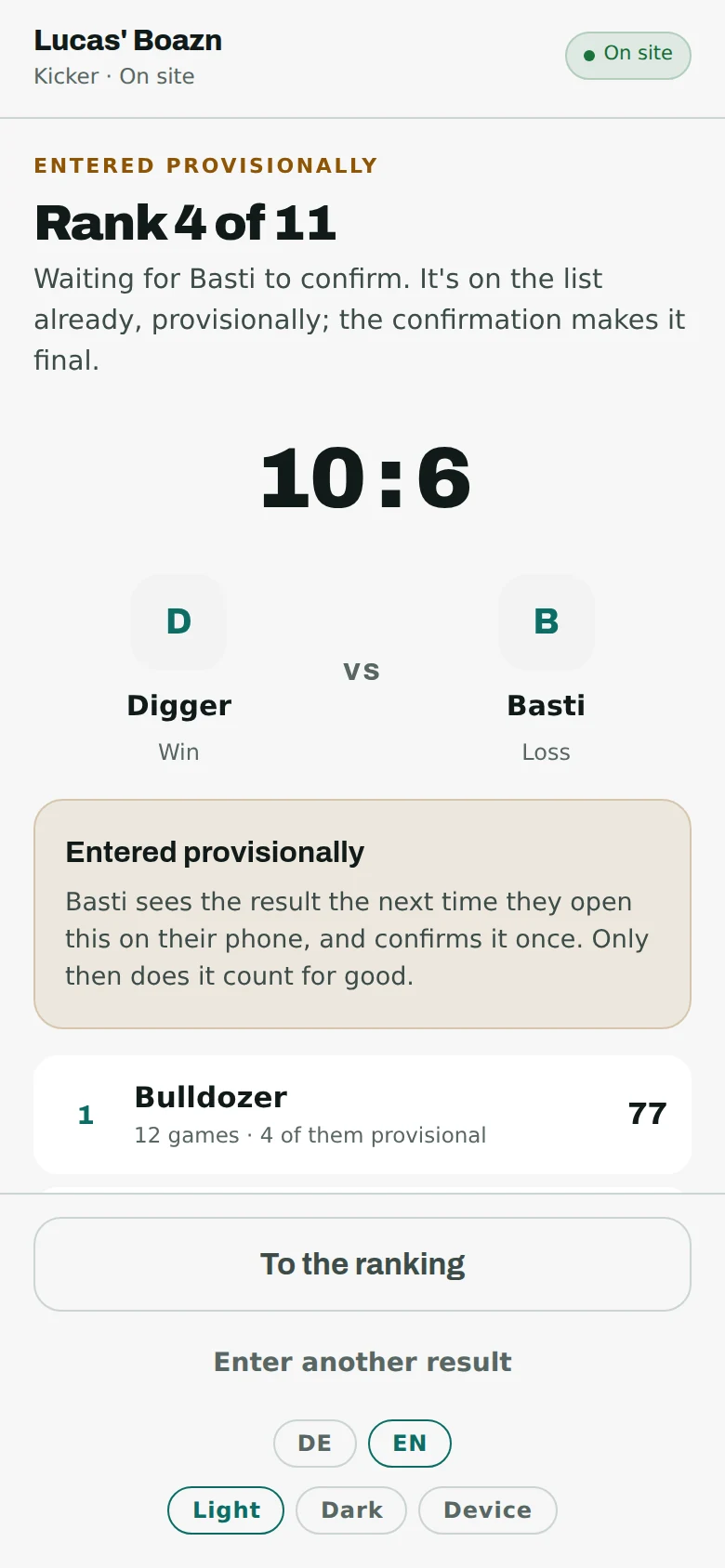
And then? Another one.
Confirming
A second person always looks at it. That is the whole trick that keeps the list honest.
“Is that right?”
If somebody entered a result against you, the question is at the top as soon as you open the page. You see the score and both names.
“That’s right” – done, the result is final. “That’s not right” – it stops counting and goes to the landlord.
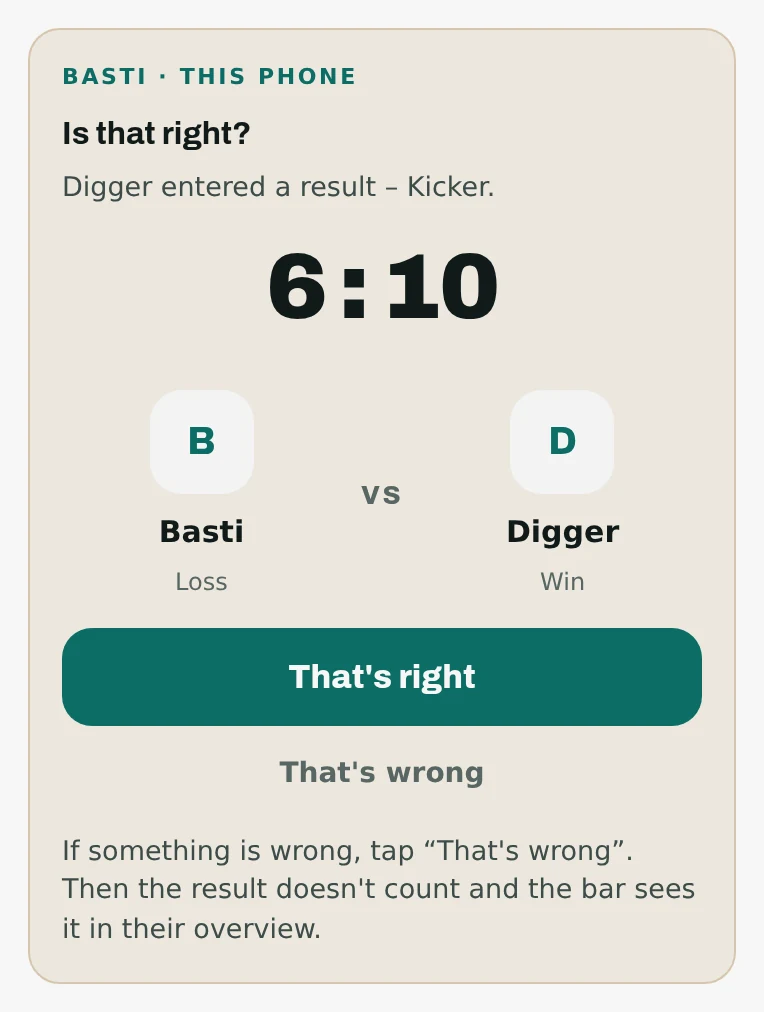
The question comes to you. There is nothing to search for and nothing to subscribe to. “Digger says you are Basti”
If you do not have a name here yet and somebody entered a game against a name nobody has claimed, RankT asks whether that name is you.
“Yes” means: the name is yours from now on – here, and only here. “No” means: the game is disputed and goes to the landlord.
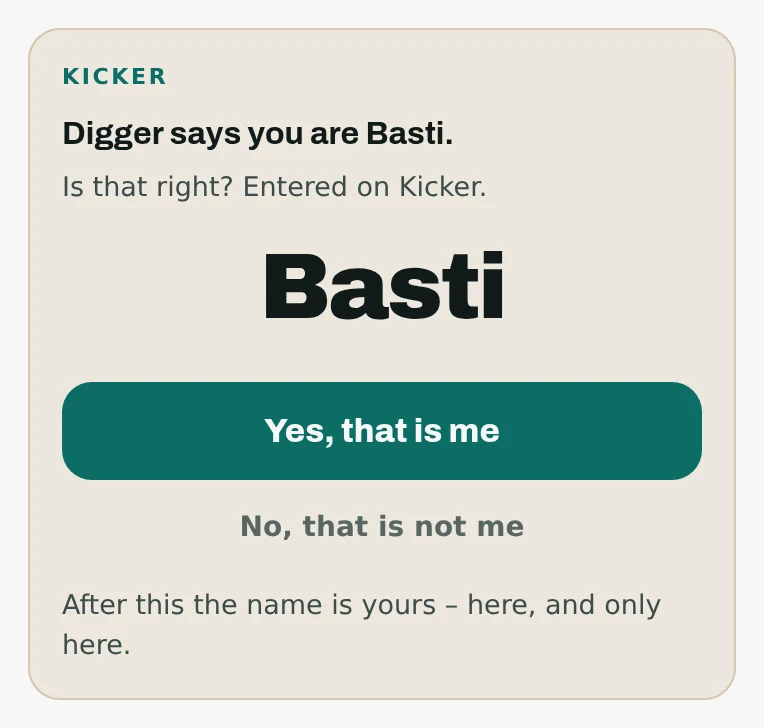
Only somebody currently in the pub who does not have a name here yet is ever asked. If somebody says no
Nothing bad happens: the result stops counting and appears in the landlord’s overview. Nobody gains points, nobody loses any.
The landlord then decides – it counts, or it does not. That is two clicks for them, and you can carry on playing in the meantime.
Disagreeing is not a row, it is a query. In case of doubt the game simply does not count – and that costs nobody anything.
An account – and what it is good for
You do not need one. RankT works without it, completely. An account protects you; it does not oblige you.
When it is offered
Not at the start, but when it can explain itself: after your first win, on your second visit, when you make the podium. You can dismiss it, and after the third time it does not come back.
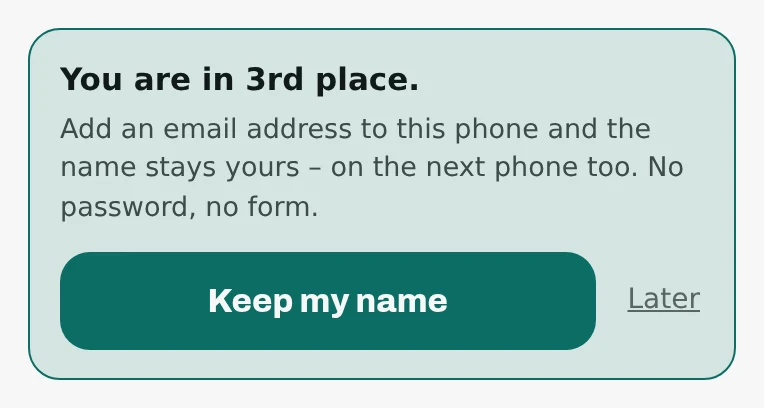
An offer, not a wall. What it gives you
Your name becomes yours: no other phone can tap it. And if you change phones or break one, you find your names again.
You give an email address and get a link – no password, no form. The address never appears on the wall screen, and the landlord does not see it.
Your account holds your places with your standing in each, your games, and any results waiting for your confirmation. What it does not hold: other people’s profiles, friend lists, a total score across pubs. Nobody learns which other pubs you play in – not the person you played, and not the landlord.
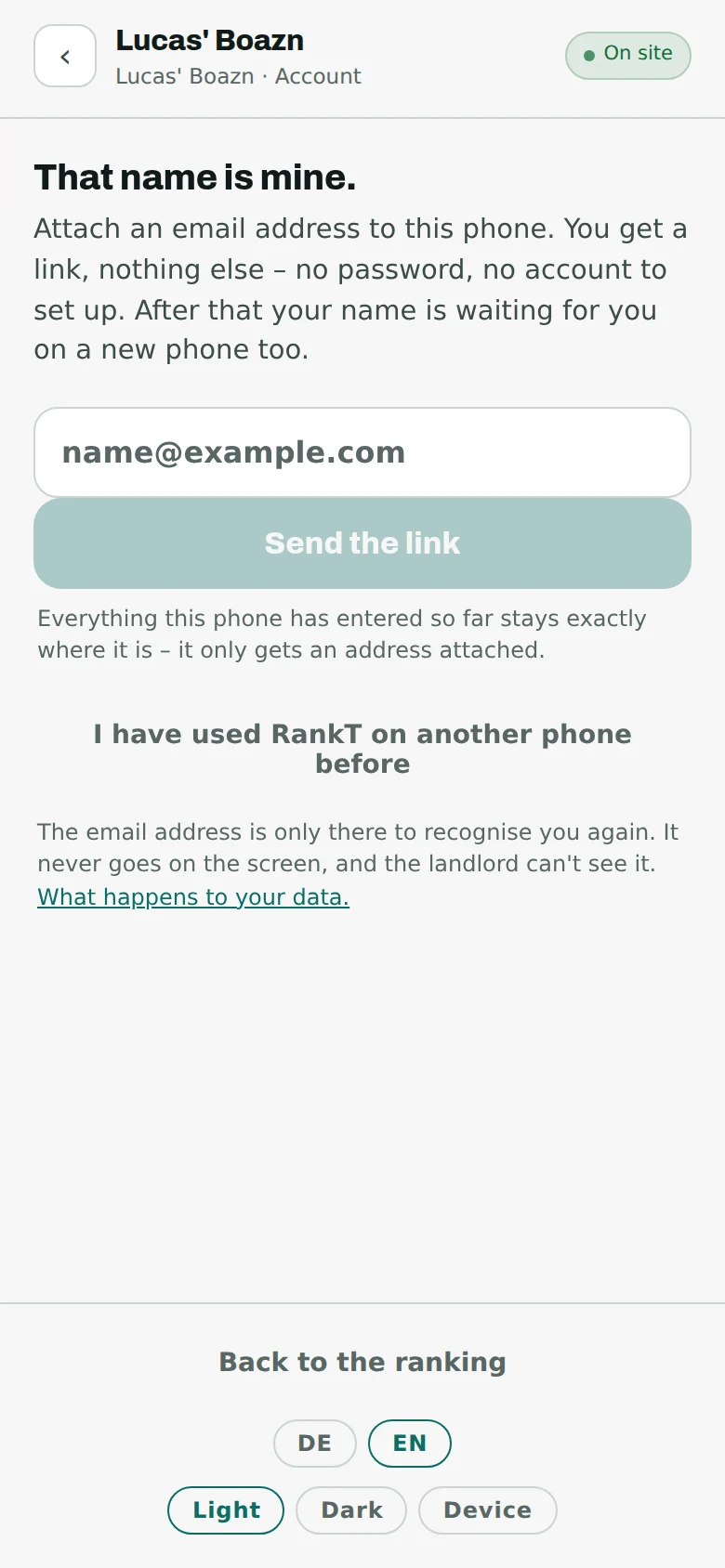
Nothing expires. There is no line in RankT that takes points away or deletes games.
When something does not work
Five things that really do happen. For anything else: the landlord is at the bar, and RankT can be reached from the home page.
The wall screen shows stale numbers.
Look at the footer. If it is small and grey, all is well – it says when the numbers were last fresh.
If it is a coloured band, the screen has had no answer for more than five minutes. That is almost always the Wi-Fi. Reconnect the device or reload the page and the numbers are back.
The code from the screen is not accepted.
The code changes every minute and a half. Read it off fresh, not the one you memorised five minutes ago.
After ten wrong tries RankT closes the door for ten minutes. Then you can only wait – or, if you have been here before today, simply open the page: being signed in lasts two hours.
My name is already taken.
If a phone stands behind it, the name belongs to somebody else. Take one of the suggestions or think of your own – “Schorsch B.” is a name too.
Is it you, from another phone? Then sign in with your email address instead of creating a second name here. The button for that is under the field.
My game will not become final.
It is waiting for your opponent. Until the deadline set by the pub it is marked provisional; after that it becomes final on its own.
One exception: if no phone stands behind your opponent’s name, it never becomes final by itself. Somebody who cannot be asked should not agree just because time passed. Tell your opponent to scan the code – then they get the question.
“The trial period has ended.”
Then RankT takes no new results. Everything else carries on: the screen shows the list, and open results can still be confirmed.
That is between the landlord and RankT, not between you and the landlord. Let them know – they will know what to do.
And then?
Then it runs. Guests enter results, the wall does the maths, and you look at the overview now and then to see whether anything is waiting for you.
Questions, wishes, something not working: there is a form on the home page. A landlord who wants to know what this costs should not have to create an account first.